Quick Answer (TL;DR)
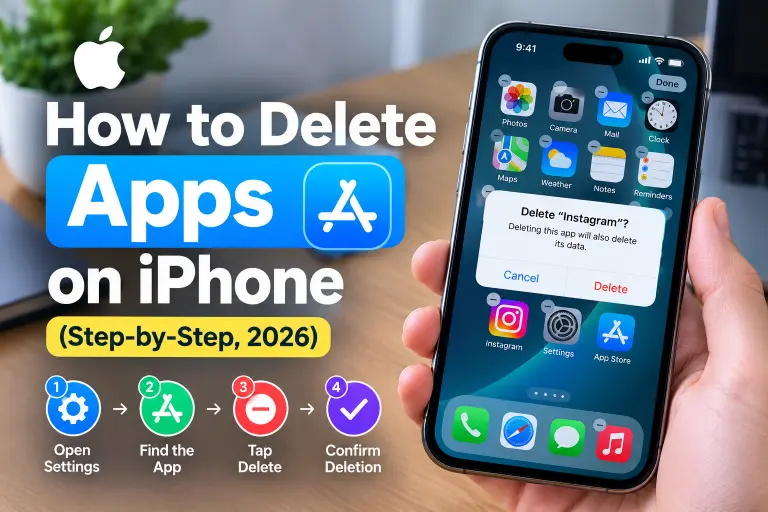
To delete an app on iPhone, touch and hold the app icon on your Home Screen or in the App Library, tap Remove App, and then tap Delete App. Confirm with Delete, and the app disappears along with its data. Alternatively, go to Settings → General → iPhone Storage, tap the app, and choose Delete App.
The 3 taps in short:
- First, touch and hold the app icon until the menu appears.
- Next, tap Remove App.
- Finally, tap Delete App, and then confirm with Delete.
Note: A newer prompt sometimes shows “Remove from Home Screen” in red text first. That option only hides the app, so tap Delete App instead if you want it gone completely.
Key Facts About Deleting Apps on iPhone
| Question | Answer |
|---|---|
| Fastest method | Touch and hold the icon → Remove App → Delete App |
| Works from | Home Screen, App Library, or Settings → iPhone Storage |
| Does deleting remove data too? | Yes, unless you choose Offload App instead |
| Can I delete built-in Apple apps? | Some, such as Maps or Calculator, but not core apps like Phone or Settings |
| Can I delete several apps at once? | Yes, using Jiggle Mode or the Sort by Size list in Storage |
| Can I get a deleted app back? | Yes, reinstall it from the App Store, and cloud-synced data often returns |
| Does deleting cancel a subscription? | No, cancel it separately under Settings → Apple ID → Subscriptions |
| Alternative if you just want it off your screen | Remove from Home Screen, which keeps it in the App Library |
How Do I Delete an App From the Home Screen?
This works on every current iPhone, including the iPhone 17 lineup.
- First, find the app icon on your Home Screen.
- Next, touch and hold the icon for about a second until a menu pops up.
- Then tap Remove App.
- A pop-up now asks you to choose between two options. Tap Delete App to remove it and its data completely.
- Finally, tap Delete again to confirm.
The icon disappears immediately, and the app’s storage space frees up right away.
Prefer the old jiggle method? Touch and hold any icon until all the icons start shaking, tap the small minus (–) badge on the app you want, and then tap Delete App. Once you finish, tap Done in the top corner to stop the icons from jiggling.
How Do I Delete Apps in the App Library?
Some apps live only in the App Library, especially ones you moved off your Home Screen earlier.
- First, swipe left past your last Home Screen page to open the App Library.
- Next, tap the search field at the top and type the app’s name, or scroll through the category folders.
- Then touch and hold the app icon.
- After that, tap Delete App.
- Finally, tap Delete to confirm.
The App Library doesn’t offer a “Remove from Home Screen” option here, because the app already isn’t on your Home Screen. So the menu goes straight to deletion.
How Do I Delete Apps From Settings?
This route works well when an icon won’t respond, or when you want to see exactly how much space each app uses first.
- First, open Settings.
- Next, tap General.
- Then tap iPhone Storage.
- Wait a moment while your iPhone lists every app by size.
- Tap the app you want to remove.
- Now tap Delete App.
- Finally, tap Delete App again to confirm.
Want to free space without losing your data? Tap Offload App instead on that same screen. Offloading removes the app itself but keeps your documents and settings, so reinstalling later brings everything back.
How Do I Delete Hidden Apps on iPhone?
An app can be “hidden” in two different ways, so the fix depends on which one applies.
If the app is only off your Home Screen: It’s sitting in the App Library, not actually hidden. Follow the App Library steps above to delete it.
If you locked and hid the app behind Face ID or a passcode: First, touch and hold an empty area on your Home Screen until the icons jiggle, then tap the Hidden folder or Apps Locked & Hidden in the App Library search results, and authenticate with Face ID or your passcode. Once the app appears, touch and hold it and tap Delete App. Alternatively, go to Settings → General → iPhone Storage, since hidden apps still show up there by name, and delete the app from that list instead.
How Do I Delete Multiple Apps on iPhone at Once?
Removing several apps in one pass saves time, especially after a big phone cleanup.
Using Jiggle Mode:
- First, touch and hold any app icon until every icon starts shaking.
- Next, tap the minus (–) badge on each app you want to remove.
- Then confirm each one with Delete App.
- Finally, tap Done once you finish.
Using iPhone Storage: Open Settings → General → iPhone Storage, and the list already sorts apps by size, largest first. Tap each one you want gone, choose Delete App, and repeat down the list. This method works well when you’re hunting for the apps eating the most space.
Can I Delete Apps on iPhone Permanently?
Yes. Tapping Delete App removes the app and its locally stored data from your iPhone for good. However, “permanently” only applies to your device, not to the App Store or the developer’s servers.
What actually happens:
- Your iPhone erases the app’s local files, cache, and settings.
- Data the app stored in iCloud or the developer’s own servers usually stays put. For example, reinstalling WhatsApp, Instagram, or Spotify often restores your account and history.
- The app stays available in the App Store, so you can download it again anytime.
- A subscription tied to the app keeps billing you until you cancel it separately.
So if you want a truly clean break from a service, cancel its subscription and consider deleting your account with that service too, not just the app.
Why Can’t I Delete Apps on My iPhone? (Troubleshooting)
| Problem | Fix |
|---|---|
| Long-press only shows “Edit Home Screen” | Update to the latest iOS version, since older builds handle the menu differently |
| I only see “Remove from Home Screen,” no Delete option | That’s expected on the first tap. Choose Remove App first, then Delete App appears |
| The minus (–) badge is missing in Jiggle Mode | Check Settings → Screen Time → Content & Privacy Restrictions → iTunes & App Store Purchases, and make sure Deleting Apps is set to Allow |
| A built-in Apple app won’t delete | Some core apps, such as Phone, Messages, and Settings, can only be hidden, never deleted |
| Deletion seems to freeze or lag | Restart your iPhone, since a quick reboot often clears the glitch |
| The app reappears after deletion | Check whether iCloud or Family Sharing is set to auto-download apps, under Settings → App Store |
| Storage doesn’t update after deleting | Wait a minute for the system to recalculate, or restart the Settings app |
| A 2-second delay appears before deletion | This is a safety pause for apps you haven’t opened in a while. Simply wait it out |
Should I Delete, Remove, or Offload an App?
Each option does something different, so pick based on what you actually want to happen.
| Remove from Home Screen | Delete App | Offload App | |
|---|---|---|---|
| Removes the icon? | Yes | Yes | Yes |
| Keeps the app installed? | Yes, in App Library | No | No |
| Keeps your data? | Yes | No | Yes, restored on reinstall |
| Frees storage? | No | Yes, the most | Yes, mostly |
| Best for | Tidying your Home Screen | Apps you’re truly done with | Apps you’ll likely reinstall later |
Frequently Asked Questions
How do I delete apps on iPhone permanently?
Touch and hold the app icon, tap Remove App, then Delete App, and confirm with Delete. This removes the app and its local data from your iPhone completely, though cloud-synced data may return if you reinstall it.
How do I delete apps that are hidden on my iPhone?
If the app moved to App Library, find it there and delete it the same way. If you locked it behind Face ID, open the Hidden folder or search results, authenticate, and then delete it from there.
How do I uninstall an app from Settings?
Go to Settings → General → iPhone Storage, tap the app, and choose Delete App. This works well when an icon won’t respond on the Home Screen.
How do I delete multiple apps on iPhone at once?
Use Jiggle Mode by holding any icon until they shake, then tap the minus badge on each app and confirm Delete App. Alternatively, work through the sorted list in iPhone Storage.
I can’t delete apps on my iPhone. What’s wrong?
This usually traces back to Screen Time restrictions. Go to Settings → Screen Time → Content & Privacy Restrictions → iTunes & App Store Purchases, and set Deleting Apps to Allow.
Does deleting an app remove my account or data with that service?
No. Deleting the app only removes it from your iPhone. Your account with that company still exists unless you delete it separately through the service itself.
Can I delete built-in Apple apps like Maps or Calculator?
Yes, many built-in apps can be deleted the same way as any other app. However, core system apps such as Phone, Messages, and Settings can only be hidden, not removed.
What’s the difference between deleting and offloading an app?
Deleting removes the app and its data completely. Offloading removes the app itself but saves your documents and settings, so reinstalling brings your data back automatically.
Why does my iPhone show a delay before deleting an app?
Recent iOS versions add a short pause for apps you haven’t opened in months, as a safeguard against accidental deletion. Just wait a couple of seconds and the deletion continues.
Will deleting an app cancel its subscription?
No. Deleting the app doesn’t touch any subscription tied to it. Cancel that separately under Settings → [your name] → Subscriptions.
Ready to Clean Up Your iPhone? Your Next Steps
- First, check Settings → General → iPhone Storage to see which apps take up the most space.
- Next, decide between Delete App and Offload App for each one.
- Then cancel any subscriptions tied to apps you’re removing for good.
- Finally, restart your iPhone if any deletion seems stuck.

Alex Mu is a digital technology writer focused on Telegram, account management, online privacy, and app troubleshooting. Through clear, practical guides, Alex helps readers understand digital platforms, manage their accounts, and resolve common technical issues. His work emphasizes accurate information, simple explanations, and step-by-step solutions that readers can follow with confidence.


