
Last Updated: May 2026
Quick Answer: Telegram messages usually stop syncing because of a weak internet connection, background data restrictions, an outdated app, or a temporary server issue. Restart Telegram, switch networks, disable battery optimization, and update the app to fix most sync problems. If the issue persists across multiple devices, Telegram’s servers may be experiencing a temporary outage.
Key Facts
- Telegram stores chats in the cloud, so sync problems point to a connection or settings issue rather than data loss
- Background data restrictions cause more sync failures than any other single factor
- Clearing your cache does not delete your chats — your messages stay safely stored in the cloud
- One device syncing while another does not usually means different network conditions or account sessions
- Server outages happen occasionally and resolve on their own without any action needed from you
You open Telegram and your messages stop right where they were yesterday. A friend says they sent you something hours ago, but nothing shows up. Maybe your phone updates instantly while your laptop sits frozen on an old conversation. This breaks the entire point of Telegram’s cloud-based design, and it usually has a clear, fixable cause.
Telegram syncs your messages across every device through the cloud. This should happen instantly. When it does not, something specific is interrupting that connection — and in most cases, you can fix it yourself in a few minutes.
This guide walks through exactly how Telegram sync works, ten common reasons it breaks, and the practical fixes that solve each scenario in 2026.
How Telegram Sync Works
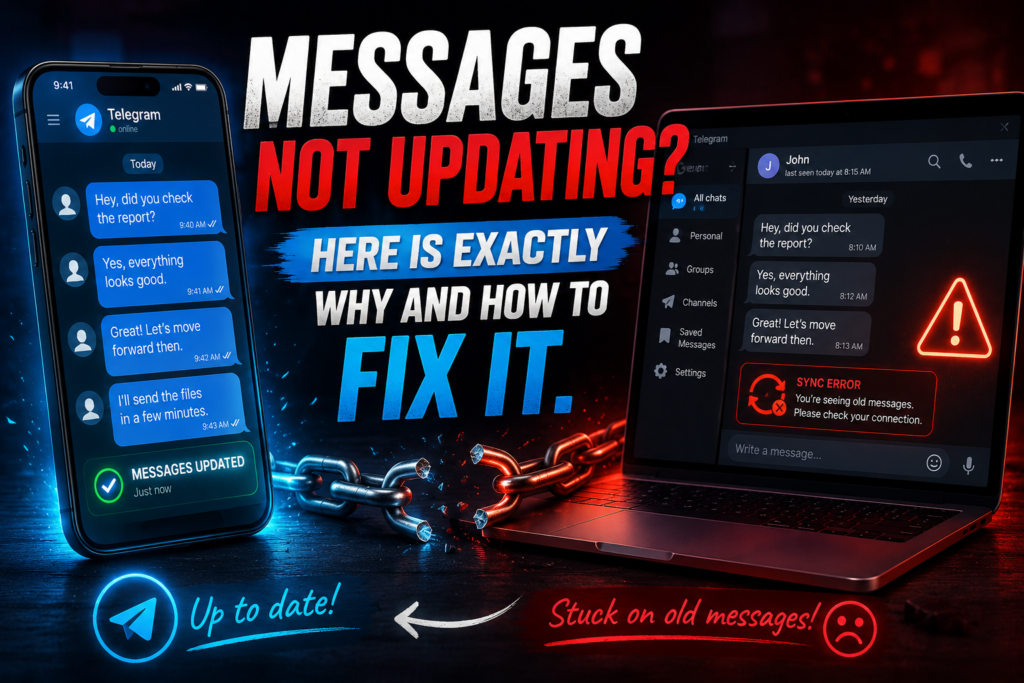
Understanding how Telegram handles your messages makes the troubleshooting steps ahead much easier to follow.
Cloud-Based Messaging vs Local Storage
Telegram stores your chats primarily in the cloud rather than on your device alone. This cloud-first design lets you access the same conversation history from your phone, tablet, or computer without manually transferring anything. Each device simply pulls your message data from Telegram’s servers rather than storing a separate, disconnected copy.
How Telegram Syncs Across Multiple Devices
Every device you log into receives updates from the same central account. When you send or receive a message, Telegram pushes that update to every other active session almost immediately. This is why opening Telegram on a new device shows your full chat history right away, rather than starting empty.
Why Sync Usually Happens Instantly
Real-time sync depends on a constant, active connection between your device and Telegram’s servers. As long as that connection stays open and stable, new messages appear within seconds. Sync problems happen specifically when something interrupts this connection or prevents your device from maintaining it consistently.
Signs That Telegram Is Not Syncing Properly
Confirm you are actually dealing with a sync issue before troubleshooting further.
- New messages are not appearing even though others confirm they sent them
- Messages arrive hours later instead of in real time
- One device updates while another does not, despite both being logged in
- Read status is not syncing, showing messages as unread on one device after you already opened them elsewhere
- Media files remain stuck loading, never fully downloading
- Channels or groups stop refreshing, showing old content even after you scroll or reopen them
10 Reasons Why Telegram Messages Aren’t Updating
Each of these causes interrupts the connection Telegram needs to sync your messages in real time.
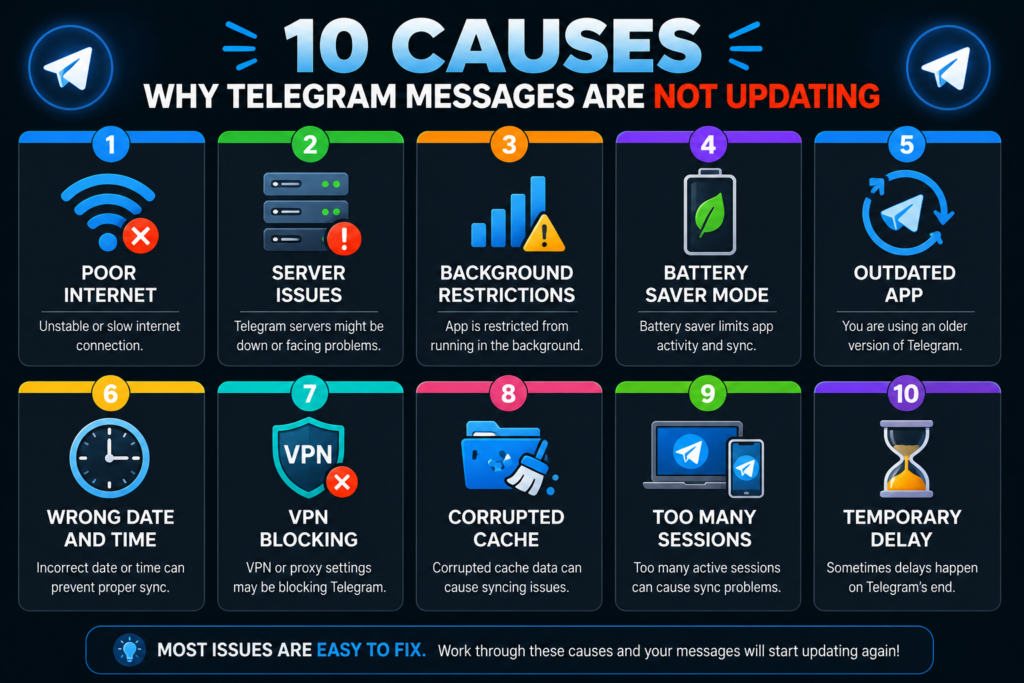
Poor or Unstable Internet Connection
A weak signal or unstable WiFi connection prevents Telegram from maintaining the constant link it needs for instant sync. Even a brief connection drop can delay message delivery until the connection stabilizes again.
Telegram Server Issues
Telegram’s own servers occasionally experience temporary slowdowns or outages. When this happens, sync problems affect many users simultaneously rather than just your device, and the issue resolves once Telegram restores normal service.
Background Data Restrictions
Many phones limit how much data apps can use in the background to save battery. If your device restricts Telegram’s background activity, the app cannot check for new messages until you manually open it.
Battery Saver or Power Optimization
Aggressive battery-saving modes often suspend background app activity entirely, including Telegram’s ability to receive push notifications and sync new content while the app is closed.
Outdated Telegram App
Older app versions sometimes contain bugs that interfere with sync performance, particularly after Telegram updates its server-side systems. Running an outdated version can create compatibility issues that newer updates have already fixed.
Device Date and Time Are Incorrect
An incorrect date or time setting on your device can cause authentication and sync errors. Telegram’s servers expect your device to report accurate time information, and a significant mismatch can disrupt the connection.
VPN or Firewall Blocking Telegram
VPN services and firewalls sometimes block or throttle Telegram’s connection to its servers, either intentionally through filtering rules or accidentally through overly restrictive settings.
Corrupted Local Cache
Telegram stores temporary files locally to speed up loading times, and this cache can occasionally become corrupted. A damaged cache file can interfere with how the app processes incoming sync data, even though your actual messages remain safe in the cloud.
Too Many Active Sessions
Having Telegram open across many devices simultaneously can occasionally slow down how quickly updates reach each one. This is less common but worth checking if you are logged in on an unusually high number of devices.
Temporary Telegram Sync Delay
Sometimes sync simply lags briefly without any clear external cause. Telegram’s infrastructure handles enormous message volume, and short, temporary delays occasionally happen even under otherwise normal conditions.
How to Fix Telegram Sync Problems
These practical fixes resolve the vast majority of sync issues.
Restart Telegram
Close the app completely and reopen it. A simple restart often clears whatever temporary glitch interrupted the sync connection, reestablishing a fresh link to Telegram’s servers.
Switch Between Wi-Fi and Mobile Data
Toggle from WiFi to mobile data, or the other way around. This forces your device to establish a new connection, which often resolves sync issues caused by an unstable or restricted network.
Disable Battery Optimization
Find Telegram in your device’s battery settings and remove any restrictions placed on its background activity. This allows Telegram to maintain its sync connection even when you are not actively using the app.
Update Telegram
Open your app store and install the latest available Telegram update. Newer versions frequently include fixes for sync-related bugs that older versions may still be affected by.
Clear Telegram Cache
Clearing your cache removes temporary local files without touching your actual messages. Your chats remain completely safe in the cloud throughout this process, since the cache only stores files used to speed up loading, not your core message data.
Reconnect Your Account
Log out and log back into Telegram on the affected device. This refreshes your session entirely, often resolving sync issues tied to a stale or corrupted local connection.
Check Telegram Server Status
Visit a trusted outage-monitoring service or Telegram’s official channels to see if others are reporting similar problems. If a widespread outage is confirmed, the fix is simply waiting for Telegram to resolve it rather than continuing to troubleshoot your own device.
Device-Specific Fixes
Certain settings differ depending on which platform you are using.
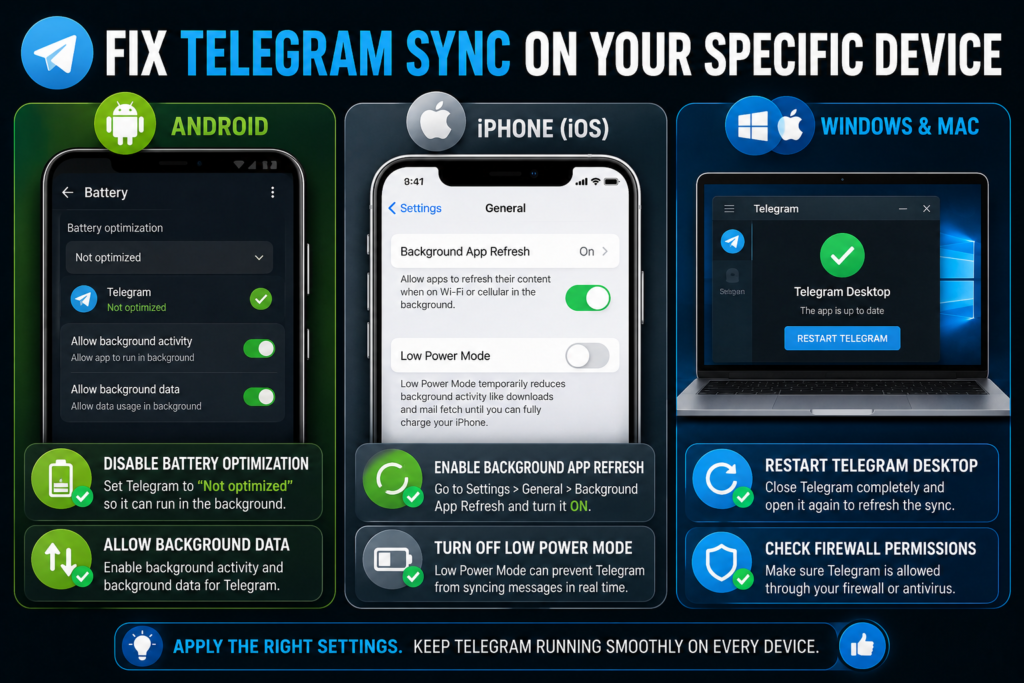
Android
Allow background data for Telegram in your phone’s app settings, so it can sync even when not actively open. Remove battery restrictions specifically applied to Telegram under your battery optimization settings. Enable auto-sync in your device’s general sync settings to ensure background processes run consistently.
iPhone
Enable Background App Refresh for Telegram under your iPhone’s general settings, allowing it to update content in the background. Disable Low Power Mode temporarily if it is currently active, since this mode often restricts background activity across all apps. Check notification permissions to confirm Telegram has full access to alert you of new messages.
Windows and Mac
Restart Telegram Desktop completely rather than just minimizing it, to clear any stuck connection. Refresh cloud synchronization by logging out and back in if messages remain stuck after a restart. Check firewall permissions to confirm your operating system or antivirus software is not blocking Telegram’s connection to its servers.
Why Telegram Syncs on One Device but Not Another
This specific pattern usually points to one of a few clear causes.
Logged Into Different Accounts
Double-check that both devices are logged into the exact same Telegram account. It is easy to assume two devices share an account when one was accidentally set up with a different phone number.
Device Offline
The device that is not syncing may simply be offline or have lost its internet connection, even briefly, without you noticing immediately.
Cached Data Not Updating
One device may be displaying old cached content rather than pulling fresh data from the server. Clearing the cache on that specific device, as covered earlier, typically resolves this.
Network Restrictions
Some networks, particularly workplace or school networks, apply restrictions that block or slow Telegram’s connection specifically on that network, even though the same device works fine elsewhere.
How to Prevent Telegram Sync Problems
A few ongoing habits keep sync issues from recurring.
Keep Telegram updated so you always benefit from the latest sync-related bug fixes. Maintain a stable internet connection whenever possible, particularly on the device you use most. Avoid aggressive battery-saving settings that restrict Telegram’s background activity. Keep background sync enabled in both your device settings and Telegram’s own app permissions. Regularly clear cache if storage is low, since a nearly full device can sometimes contribute to performance issues that affect sync indirectly.
When the Problem Is on Telegram’s Side
Sometimes the issue genuinely has nothing to do with your device or settings.
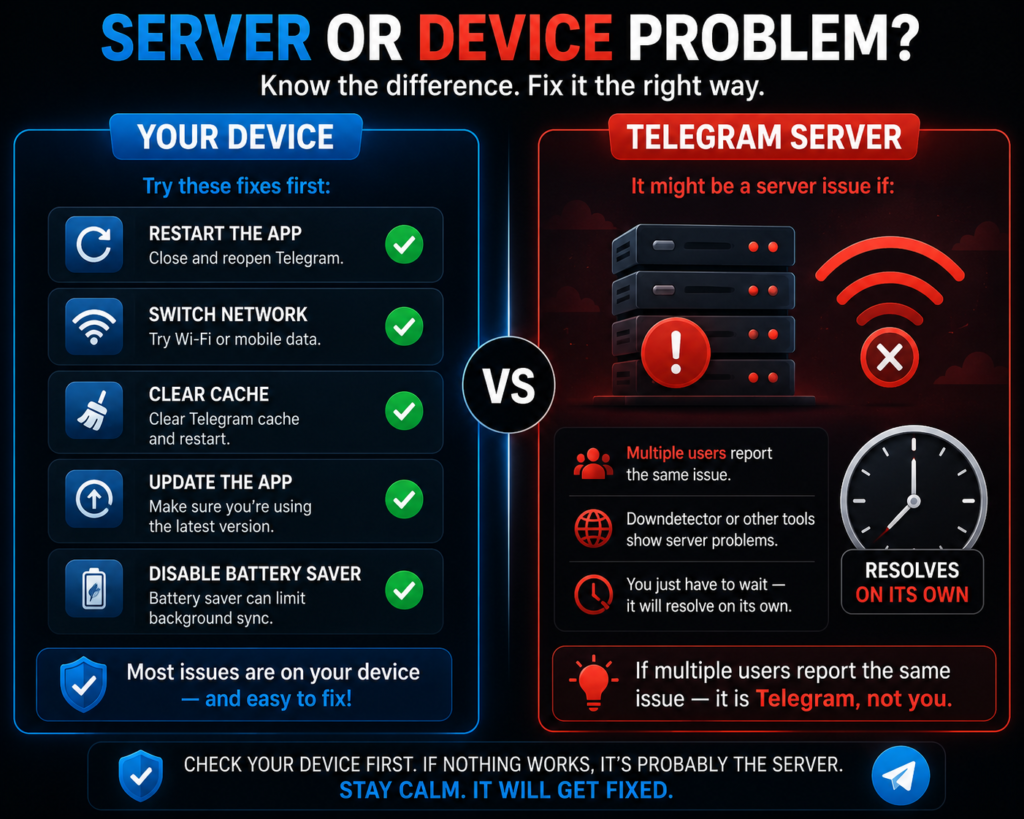
Temporary Server Outages
Telegram’s servers occasionally experience brief outages that affect many users at once. These typically resolve within minutes to a few hours without requiring any action from you.
Maintenance Windows
Telegram sometimes performs scheduled maintenance that temporarily affects sync performance. These windows are usually brief and resolve automatically once maintenance completes.
Regional Connectivity Problems
Sync issues can sometimes affect specific regions or internet service providers rather than Telegram globally, depending on local network infrastructure between your area and Telegram’s servers.
How to Check If Others Are Affected
Search social media or visit a trusted outage-tracking website to see if other users are reporting similar problems. If reports are widespread, you can stop troubleshooting your own device and simply wait for Telegram to resolve the issue on their end.
Frequently Asked Questions
Why are my Telegram messages not updating?
Internet issues, battery restrictions, an outdated app, or server problems cause most sync failures. Work through the fixes in this guide in order, starting with a simple restart and network check.
Why does Telegram sync on my phone but not my computer?
Account differences, network settings, or desktop-specific issues often explain this pattern. Confirm both devices use the same account, then check your desktop app’s firewall permissions and update status.
Does clearing Telegram cache delete my chats?
No. Your cloud chats remain completely safe and untouched. Clearing the cache only removes temporary local files that help the app load faster, not your actual message history.
Can Telegram server problems stop messages from syncing?
Yes. Outages or scheduled maintenance can temporarily delay synchronization for many users at once. These issues typically resolve on their own within a short period.
Why are my Telegram messages delayed?
Network quality, background restrictions, and server load can all affect delivery speed. A delay does not mean your messages are lost — they typically arrive once the underlying issue clears.
Will reinstalling Telegram fix sync issues?
Reinstalling can help in some persistent cases, but try simpler fixes first. A cache clear, app update, or account reconnect resolves most sync problems without needing a full reinstall.
How can I tell if Telegram is having a global outage?
Check official Telegram announcements or a trusted outage-monitoring service to see if other users are reporting similar problems in your area or globally.
Conclusion
Telegram sync problems almost always trace back to one of ten common causes — and most of them have a quick, straightforward fix. Start with a simple restart and network check, then work through battery settings, app updates, and cache clearing if the issue continues.
Remember that your messages stay safe in Telegram’s cloud throughout any of these fixes. Clearing your cache or reconnecting your account never deletes your chat history, since that data lives on Telegram’s servers rather than only on your device.
If the problem affects many users at once, check Telegram’s official channels or a trusted outage tracker before assuming something is wrong with your own setup.
DeleteAccount.com is not affiliated with Telegram. This guide is for informational purposes only. Steps may vary slightly depending on your app version.

Alex Mu is a digital technology writer focused on Telegram, account management, online privacy, and app troubleshooting. Through clear, practical guides, Alex helps readers understand digital platforms, manage their accounts, and resolve common technical issues. His work emphasizes accurate information, simple explanations, and step-by-step solutions that readers can follow with confidence.


