
Last Updated: May 2026
Quick Answer: To change your Telegram phone number without losing anything, open Settings, tap your current phone number, select Change Number, enter your new number, verify with the code Telegram sends, and confirm. Your chats, contacts, groups, channels, and settings all transfer automatically to the new number — nothing is lost in the process.
Key Facts
- Telegram migrates your existing account to the new number — it does not create a new one
- Chats, contacts, groups, channels, and Saved Messages all transfer automatically
- Your username and Two-Step Verification stay exactly the same after the switch
- The verification code must be received on the new number to complete the process
- Telegram Premium typically carries over since it is tied to your account, not your phone number
Getting a new phone number does not mean you have to give up years of Telegram chat history, your contacts, or the groups and channels you have built over time. A lot of users assume changing their number means starting from scratch, the same way switching numbers on other platforms sometimes forces a fresh signup. Telegram works differently.
Telegram is built around the idea that your account, not your phone number, is the permanent thing. Your number is simply the key used to verify and log into that account. Change the key, and the account itself stays exactly as it was.
This guide walks through the entire process — what actually happens behind the scenes, the exact steps for Android, iPhone, and Desktop, and what to check both before and after making the switch so nothing catches you off guard.
What Happens When You Change Your Telegram Phone Number?
Changing your phone number on Telegram is fundamentally a migration, not a fresh registration. Telegram simply updates which phone number is linked to your existing account — the account itself, along with everything inside it, remains completely intact throughout the process.
What Transfers to Your New Number?
Everything that makes up your Telegram presence moves with you automatically. This includes:
- Your chats — every private conversation stays exactly where it was
- Your contacts — your contact list remains unchanged
- Your groups — membership and any admin roles continue uninterrupted
- Your channels — including ownership if you manage any
- Saved Messages — your personal cloud storage folder stays intact
- Media — all photos, videos, and files you have sent or received
- Telegram Premium, if you have an active subscription, since it is tied to the account itself rather than the phone number
What Changes After the Update?
A small number of things do change once the process completes. Your login phone number is now the new one, meaning future verification codes will be sent there instead of your old number. Contact visibility may shift slightly — people who had your old number saved will need your new number to find you again unless they already have you saved through your Telegram username. Your verification method going forward relies entirely on the new number, so make sure it is one you have reliable, long-term access to.
Things to Do Before Changing Your Telegram Phone Number
A little preparation prevents the most common headaches users run into during this process.
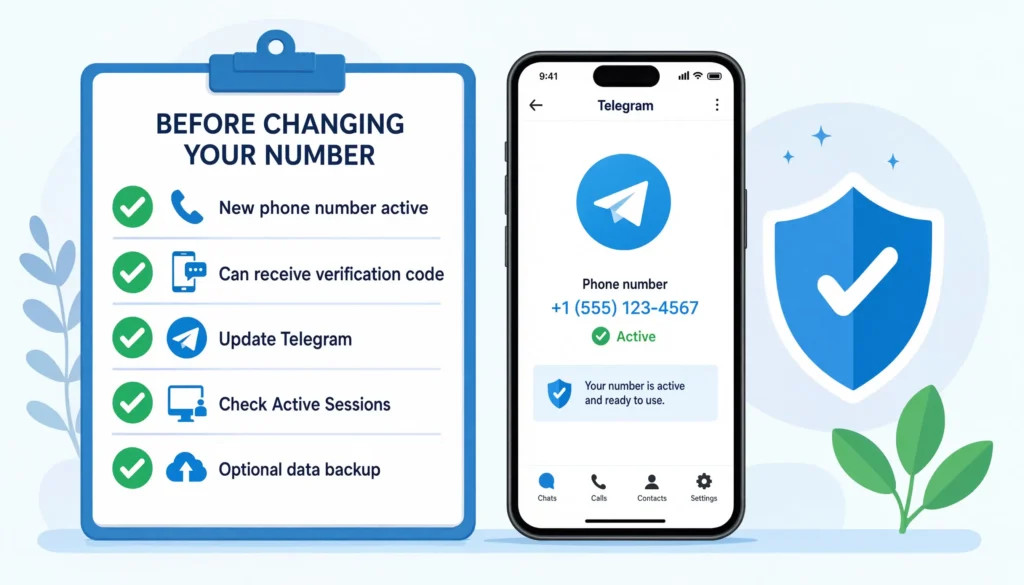
Make Sure You Can Receive the Verification Code
This is the single most important requirement. Before starting the change, confirm your new phone number is active and capable of receiving SMS messages or calls. Telegram sends a verification code to the new number to confirm you actually control it, and the process cannot complete without successfully entering that code.
Update Telegram to the Latest Version
Older app versions occasionally have minor differences in how settings are laid out. Updating Telegram to the current version on your device ensures the Change Number option appears exactly where this guide describes it, and reduces the chance of running into bugs that have already been fixed in newer releases.
Check Your Active Sessions
Before making any account-level change, it is good practice to review where your account is currently logged in. Go to Settings → Privacy and Security → Active Sessions and confirm you recognize every device listed. This is a useful habit regardless of whether you are changing your number, but it is worth doing right before any significant account change.
Back Up Important Information (Optional)
While the change process is designed to preserve everything automatically, backing up anything especially important beforehand is a sensible extra precaution. Use Telegram Desktop’s export feature under Settings → Advanced → Export Telegram Data if you want a local copy of key conversations before proceeding, even though this step is not required for the migration to succeed.
How to Change Your Telegram Phone Number on Android
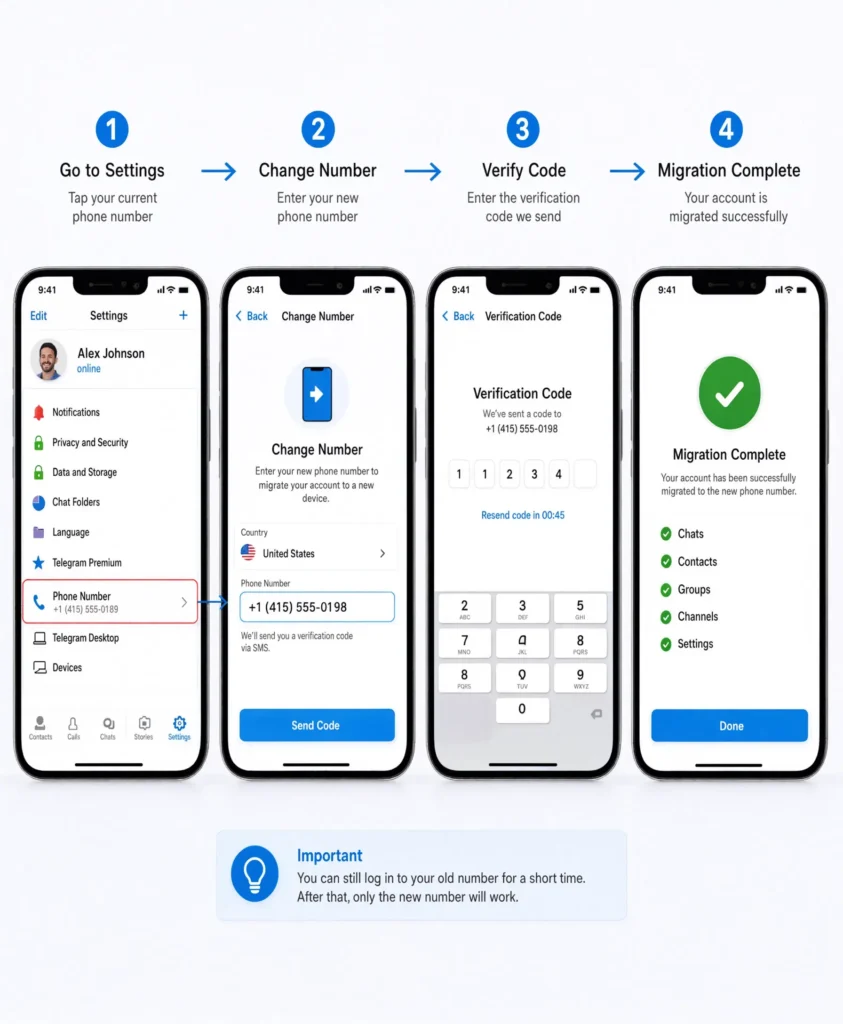
The process on Android takes just a few minutes from start to finish.
- Open Telegram on your Android device
- Tap the three-line menu in the top left corner, then tap Settings
- Tap your current phone number at the top of the Settings screen
- Select Change Number
- Enter your old phone number to confirm, followed by your new phone number in international format
- Telegram sends a verification code to your new number — enter it when it arrives
- Confirm the change once verification succeeds
Your account now operates under the new number, with every chat, contact, group, and setting exactly where you left it.
How to Change Your Telegram Phone Number on iPhone
The iOS process mirrors Android closely, with only minor differences in menu navigation.
- Open Telegram on your iPhone
- Tap Settings in the bottom right corner of the screen
- Tap your phone number near the top of the settings list
- Select Change Number
- Confirm your old number, then enter your new number in international format
- Enter the verification code Telegram sends to the new number
- Confirm the change to complete the process
The underlying steps are identical to Android — only the visual layout of the Settings menu differs slightly between the two platforms.
How to Change Your Telegram Phone Number Using Telegram Desktop
Telegram Desktop generally mirrors the account settings available on mobile, including phone number management, though the experience can occasionally vary depending on your specific desktop client version.
If the Option Is Missing on Desktop
If you do not see a Change Number option inside Telegram Desktop’s settings, this is not unusual — some desktop versions route this particular change through the mobile app instead. Do not assume something is broken; this is simply how Telegram has structured the feature in certain client versions.
Continue the Process on Your Phone
If Desktop does not offer the option directly, open Telegram on your Android or iPhone device and follow the mobile steps outlined above. Once the change is made on mobile, Telegram Desktop will automatically reflect the updated number the next time it syncs, with no separate action required on the desktop side.
Will You Lose Anything After Changing Your Number?
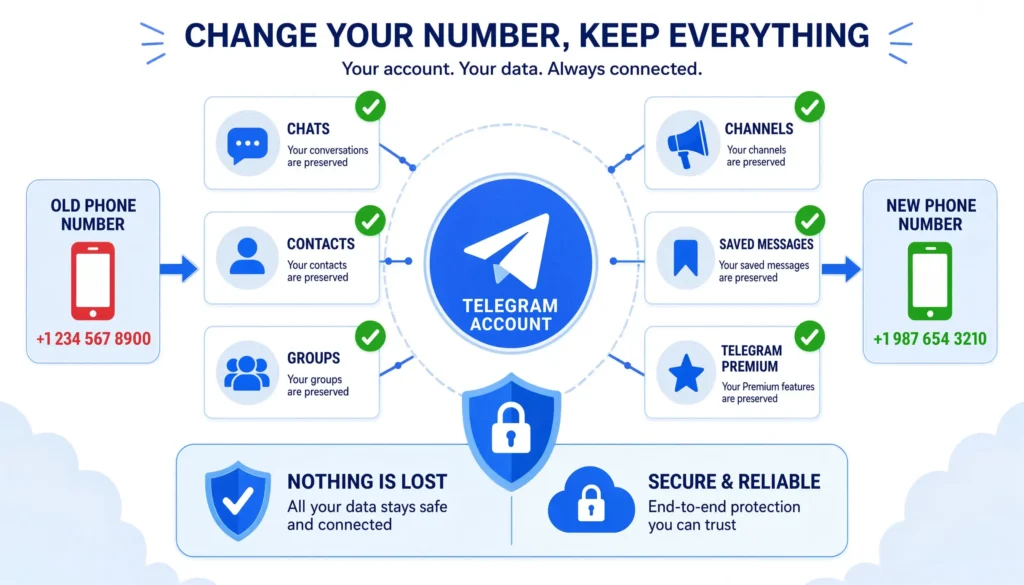
This is the question on every user’s mind before making the switch, and the honest answer is reassuring.
| Item | Kept? |
|---|---|
| Private Chats | ✅ Yes |
| Groups | ✅ Yes |
| Channels | ✅ Yes |
| Saved Messages | ✅ Yes |
| Contacts | ✅ Yes |
| Media | ✅ Yes |
| Username | ✅ Yes |
| Two-Step Verification | ✅ Yes |
| Telegram Premium | Usually Yes |
Every core element of your account survives the transition intact. The only item marked “Usually Yes” is Telegram Premium, since subscription handling can occasionally depend on which platform — Apple, Google, or direct billing — your subscription was originally purchased through. In the vast majority of cases, Premium status continues without interruption since it is fundamentally tied to your account rather than your phone number.
Common Problems When Changing Your Telegram Number
A handful of specific issues account for most of the trouble users encounter during this process.
Verification Code Not Received
If the code does not arrive on your new number within a few minutes, double-check that you entered the number correctly in full international format, including the country code. Try requesting the code again, or switch from SMS delivery to a voice call option if Telegram offers it for your number.
New Number Already Has a Telegram Account
If your new phone number is already registered to a different Telegram account, you will need to resolve that first before using it for this change. This typically means deleting or changing the number on that other account before it becomes available for your migration.
Lost Access to the Old SIM Card
Interestingly, losing access to your old SIM card does not block this process in most cases, since Telegram primarily verifies ownership of the new number rather than requiring active confirmation through the old one. Your existing logged-in session is generally sufficient to authorize the change.
Contacts Still See the Old Number
After the change, some contacts may still show your old number in their phone’s address book until they manually update it. This is expected behavior — Telegram updates your account internally, but it cannot reach into someone else’s phone contacts and edit the entry for them.
Change Number Option Missing
If you cannot locate the Change Number setting at all, confirm you are looking inside Settings rather than a different menu, and that your app is fully updated to the latest version. If the option still does not appear after updating, try the process from a different device as a troubleshooting step.
Best Practices After Changing Your Phone Number
A few quick checks after the change ensure everything stays secure and properly configured going forward.
Review your privacy settings to confirm they still reflect your preferences, since this is a good moment to double-check who can see your phone number and profile information. Check your active devices under Active Sessions to make sure only your own devices remain logged in. Enable Two-Step Verification if you have not already, adding an extra layer of protection independent of your phone number. Notify important contacts if necessary, particularly anyone who might try reaching you through your old number outside of Telegram. Verify channel ownership and admin access for any communities you manage, just to confirm everything transferred as expected.
Frequently Asked Questions
Will I lose my Telegram chats if I change my phone number?
No. Your chats remain linked to the same underlying account and transfer automatically to your new number. Nothing about your message history changes during this process.
Do my contacts know I changed my number?
Telegram does not send an explicit notification announcing the change to your contacts. However, depending on your privacy settings, mutual contacts who have your number saved may notice the update reflected in how Telegram displays your profile. Adjust your phone number visibility settings if you want more control over this.
Can I change my Telegram number without the old SIM card?
In most cases, yes. The process primarily requires verifying the new number, not re-confirming the old one, especially if you are already logged into an active session. Access to the old SIM is helpful but not always strictly necessary.
What if my new phone number already has a Telegram account?
You will need to resolve that existing account first — either by deleting it or changing its number — before your new number becomes available for this migration. Telegram requires each phone number to be uniquely tied to one account at a time.
Will my groups and channels remain the same?
Yes. Ownership, memberships, and admin rights all continue exactly as they were after the number change. Your role in every community you belong to or manage stays intact.
Can I change my Telegram phone number more than once?
Yes, Telegram allows multiple number changes over time. That said, changing your number unusually frequently in a short period may occasionally trigger additional security checks as a precaution.
Does changing my number affect Telegram Premium?
In most situations, no. Telegram Premium is generally tied to your account rather than your specific phone number, so an active subscription typically continues without interruption through the migration.
Conclusion
Changing your Telegram phone number is a migration, not a reset. Your chats, contacts, groups, channels, Saved Messages, and even your username all move with you to the new number, leaving your actual Telegram experience untouched while only the verification method underneath changes.
Take a moment beforehand to confirm your new number can receive a verification code, update your app to the latest version, and review your active sessions. Once the switch is complete, double-check your privacy settings, enable Two-Step Verification if you have not already, and confirm any channels you manage are still showing you as the owner.
DeleteAccount.com is not affiliated with Telegram. This guide is for informational purposes only. Steps may vary slightly depending on your app version.

Alex Mu is a digital technology writer focused on Telegram, account management, online privacy, and app troubleshooting. Through clear, practical guides, Alex helps readers understand digital platforms, manage their accounts, and resolve common technical issues. His work emphasizes accurate information, simple explanations, and step-by-step solutions that readers can follow with confidence.


