Last Updated: July 2026
Quick Answer
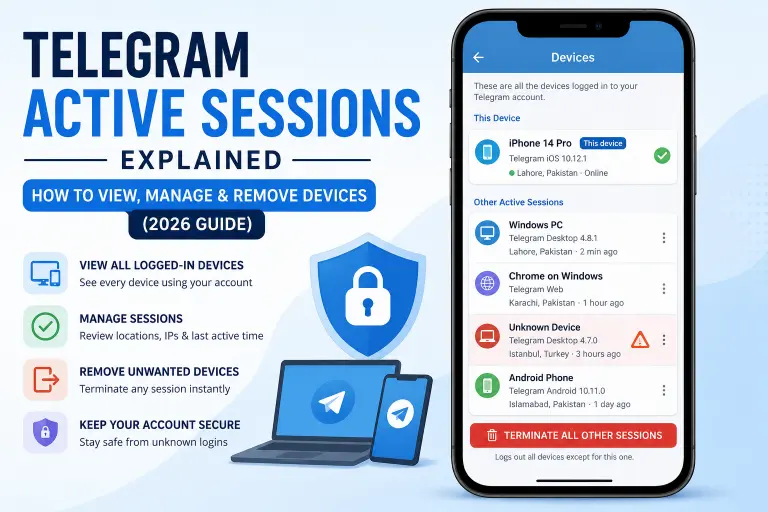
Telegram Active Sessions show every device currently logged into your account — phone, desktop, web browser, and any other device. To view them, go to Settings → Devices (also labeled Privacy and Security → Active Sessions on some app versions). From there you can end any session individually or tap Terminate All Other Sessions to log out everywhere except your current device.
Key Facts
- Telegram allows unlimited simultaneous logins — the same account can stay active on a phone, laptop, tablet, and browser at once.
- Each session shows the device type, approximate location, IP address, and last active time.
- You can terminate a single session or all other sessions at once, without changing your password or phone number.
- Terminating a session does not delete any messages or data — it only logs that device out.
- Telegram will send you a notification when a new device logs in, so you can catch unauthorized access early.
What Are Telegram Active Sessions?
An active session is any device or browser currently signed into your Telegram account. Because Telegram is cloud-based, you don’t have to manually sync anything — every device you log into stays connected and up to date at the same time.
That convenience is also the risk. If you logged in once on a friend’s laptop, a work computer, or an old phone you no longer use, that device may still have full access to your chats unless you go in and remove it yourself. This is especially common with Telegram Web, since browser sessions are easy to leave signed in on a shared or public computer without realizing it.
How Do I View My Active Sessions on Telegram?
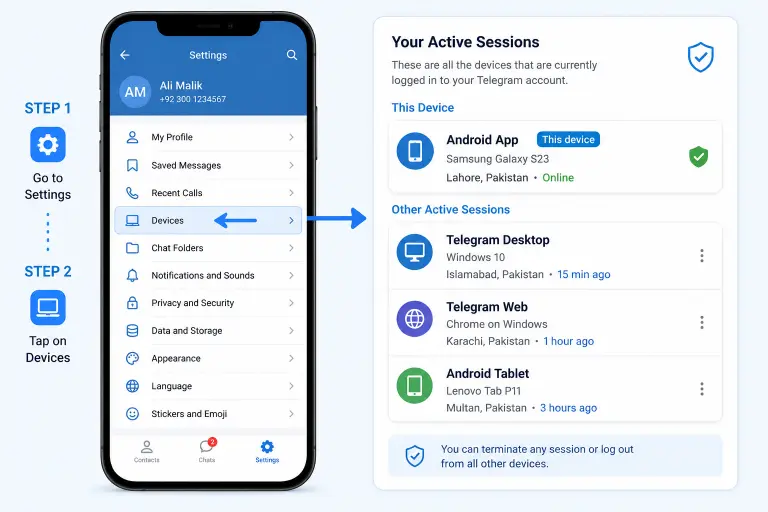
The path is the same across mobile and desktop, with slightly different menu labels depending on your app version.
- Open Telegram and tap the menu icon (three horizontal lines) in the top-left corner.
- Tap Settings.
- Tap Devices (on older app versions, this is under Privacy and Security → Active Sessions).
- You’ll see your current session at the top, followed by a list of every other device logged into your account.
Each entry shows the app name (Telegram Android, Telegram Desktop, Telegram Web, etc.), a rough location based on IP address, and when it was last active.
Telegram Active Sessions Video Tutorial (2026)
Follow this easy video guide to check all active Telegram logins, review connected devices, and sign out remotely from any session you no longer use. It’s one of the quickest ways to keep your Telegram account secure.
How Do I Remove a Device From Telegram?
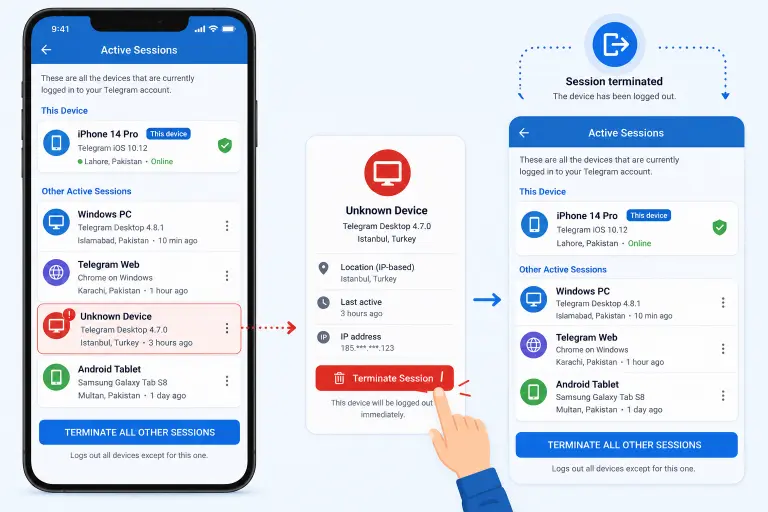
If you spot a device you don’t recognize or no longer use, you can remove it in a few taps:
- Go to Settings → Devices.
- Tap the session you want to remove.
- Tap Terminate Session.
- Confirm when prompted.
That device is immediately logged out and will need to sign in again — with your phone number and confirmation code — to regain access.
How Do I Log Out of All Other Devices at Once?
If you’re not sure which sessions are safe and just want a clean slate:
- Go to Settings → Devices.
- Tap Terminate All Other Sessions.
- Confirm the action.
This logs out every device except the one you’re currently using. It doesn’t affect your messages, contacts, or account itself — only where your account is currently signed in.
What Does Each Session Actually Show You?
| Field | What It Tells You | Why It Matters |
|---|---|---|
| App/Device name | Which Telegram client is logged in (iOS, Android, Desktop, Web) | Confirms whether it matches a device you actually own |
| Location (IP-based) | Approximate city/region of that session | A location you don’t recognize is a red flag |
| Last active | When that device last used Telegram | Old, inactive sessions are safe to remove |
| IP address | The network the device connected from | Useful if you’re troubleshooting suspicious access |
Keep in mind the location is based on IP address, not GPS — it can be off by a city or more, especially if the device is using a VPN, mobile data, or a shared network.
Should I Terminate a Session I Don’t Recognize?
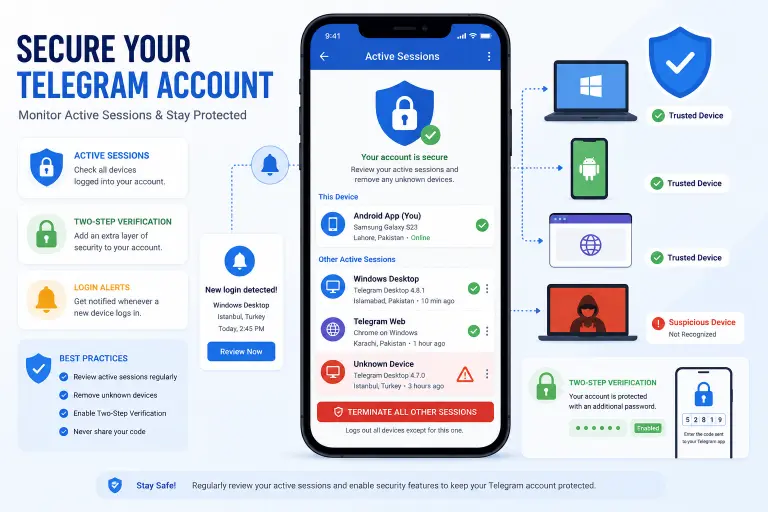
Yes — treat any unfamiliar session as a reason to act, not just a curiosity. Terminate it immediately, then take two additional steps:
- Enable Two-Step Verification (Settings → Privacy and Security → Two-Step Verification) so a password is required even if someone has your SIM or confirmation code.
- Check your linked email for Two-Step Verification, since that’s what lets you recover access if your phone number is ever compromised.
If the unfamiliar session showed up alongside other signs of compromise — messages you didn’t send, contacts reporting strange activity, settings you didn’t change — that points to a hacked account rather than a simple forgotten login, and needs a different recovery process.
Common Active Sessions Problems
| Problem | Likely Cause | Fix |
|---|---|---|
| A session won’t terminate | Temporary sync delay | Wait a minute and refresh, or restart the app |
| Old device still shows as “active” | Telegram caches last-active time; it updates on next real interaction | Terminate it manually — the label doesn’t affect your ability to remove it |
| Session location looks wrong | IP-based location, not GPS | Normal — VPNs, mobile carriers, and travel all shift IP location |
| You don’t see “Active Sessions,” only “Devices” | Naming changed in a recent app update | Same feature, new label — the menu path still applies |
| Terminated a session but the device still has messages | Termination logs the device out; it doesn’t wipe locally cached data | Manually delete the app or clear its data on that device if needed |
Do I Need to Check Active Sessions Before Deleting My Account?
It’s a good habit, but not a required step. Deleting your Telegram account automatically ends every active session on every device — you don’t need to terminate them individually first. If you’re getting ready to delete your account, our Telegram account deletion checklist covers everything else worth doing beforehand, including session cleanup.
Frequently Asked Questions
Can someone use my Telegram account without me knowing?
Yes, if they have access to a device where you’re still logged in, or if they gained access through a compromised confirmation code. Checking your Active Sessions periodically is the easiest way to catch this early.
Does terminating a session delete my messages?
No. Terminating a session only logs that device out of your account. Your chat history stays intact on Telegram’s servers and on any device that remains logged in.
Will the other person know I terminated their session?
No notification is sent to the removed device beyond being logged out. They’ll simply be asked to log in again the next time they open Telegram.
How many devices can be logged into Telegram at once?
There’s no fixed limit. Telegram supports unlimited simultaneous sessions across phones, tablets, desktop apps, and web browsers.
Can I see the exact location of a device in my active sessions?
No. Telegram shows an approximate location based on IP address, which can differ from the device’s actual physical location, especially with VPNs or mobile networks.
What’s the difference between “Devices” and “Active Sessions” in the menu?
They’re the same feature. Telegram has used both labels across different app versions — if you don’t see one, look for the other under Settings.
Do I get notified when a new device logs into my account?
Yes. Telegram sends a notification through the app when a new session starts, so you can review and terminate it right away if you don’t recognize it.
Next Step
If you found a session you don’t recognize and suspect your account has actually been compromised — not just an old forgotten login — recovering a hacked Telegram account walks through the steps to secure or remove it safely. If you’re weighing whether to keep your account at all, our complete guide to deleting a Telegram account covers every scenario.
DeleteAccountGuide.com is not affiliated with Telegram. This guide is for informational purposes only. Steps may vary slightly depending on your app version.

Alex Mu is a digital technology writer focused on Telegram, account management, online privacy, and app troubleshooting. Through clear, practical guides, Alex helps readers understand digital platforms, manage their accounts, and resolve common technical issues. His work emphasizes accurate information, simple explanations, and step-by-step solutions that readers can follow with confidence.


