
Last Updated: May 2026
TL;DR Quick Answer: You cannot keep Telegram chats after deleting your account unless you export them first. Use Telegram Desktop to back up your messages, photos, and files before deletion. Once your account is deleted, the data is gone permanently.
Key Facts:
- Telegram Desktop is the only way to fully export your chat history
- You can export messages in HTML or JSON format
- Photos, videos, and files can be included in the export
- Exported chats cannot be imported into a new Telegram account — they are for reference only
- Mobile apps do not offer a full export feature — desktop is required
Introduction
Deleting your Telegram account wipes everything — messages, photos, files, and cloud data — permanently. There is no recycle bin and no recovery option once it’s done.
If you have important conversations, photos from group chats, or documents shared over Telegram, you need to save them before you delete anything. The good news is that Telegram gives you a built-in export tool through its desktop app that lets you download everything to your computer first.
This guide walks you through the full backup process so you don’t lose anything you actually care about.
Can You Delete Telegram Without Losing Your Chat History?
Not by default — but yes, if you back up your data before deleting. Telegram does not preserve your messages after account deletion. The only way to keep your chat history is to export it yourself before the account is gone.
The Short Answer
If you delete first and back up later, it’s too late. The export must happen before you confirm account deletion. Once deletion is complete, Telegram cannot retrieve your data — and neither can you.
Why Telegram Deletes Account Data Permanently
Telegram’s servers store your messages in the cloud while your account is active. The moment you delete your account, Telegram removes your data from those servers. There is no grace period and no archived copy kept for recovery purposes.
What a Backup Can and Cannot Preserve
A Telegram backup saves your message text, media files, and documents as local files on your computer. What it cannot do is keep your account active, restore your Telegram profile, or let you pick up conversations from a new account. The export is purely for your own reference.
What Telegram Data Should You Back Up Before Deleting?

Before you start the export process, take stock of what you actually want to save. Not everything needs to be backed up — focus on what matters to you.
Private Conversations
One-on-one chats with friends, family, or colleagues can be exported in full. This includes all text messages with timestamps and sender names.
Group Chats
Group chat history can also be exported. If you are part of large groups with years of message history, these exports can be sizeable.
Photos and Videos
Any photos or videos shared in your Telegram chats can be downloaded as part of the export. You choose during the export process whether to include media or just message text.
Documents and Files
PDFs, Word documents, zip files, and any other files shared through Telegram can be included in the backup download.
Saved Messages
Telegram’s Saved Messages feature works like a personal cloud clipboard. Anything you’ve saved there — notes, links, photos — can be exported before deletion.
Contact Information
Telegram does not export a traditional contact list. If you have important contacts whose numbers exist only in Telegram, manually note them down or screenshot the conversations before exporting.
The Best Way to Back Up Telegram Before Deleting Your Account
Telegram Desktop is the tool you need. The mobile apps on Android and iPhone do not offer a full data export feature. The complete export function is only available through the desktop application on Windows, Mac, or Linux.
Why Telegram Desktop Is Required
Telegram built the export feature into the desktop app deliberately. Mobile apps are designed for quick communication, not data management. The desktop app gives you access to Advanced Settings where the full export tool lives.
Supported Export Formats
Telegram exports your data in two formats. HTML is the easier option — your chats open directly in any web browser and are easy to read. JSON is a raw data format better suited for technical users who want to process or search the data programmatically. For most US users, HTML is the right choice.
What Devices Can Be Used
You need a Windows PC, Mac, or Linux computer with Telegram Desktop installed. The export runs on the computer and saves the backup files directly to your hard drive.
How to Export Telegram Chats Step by Step
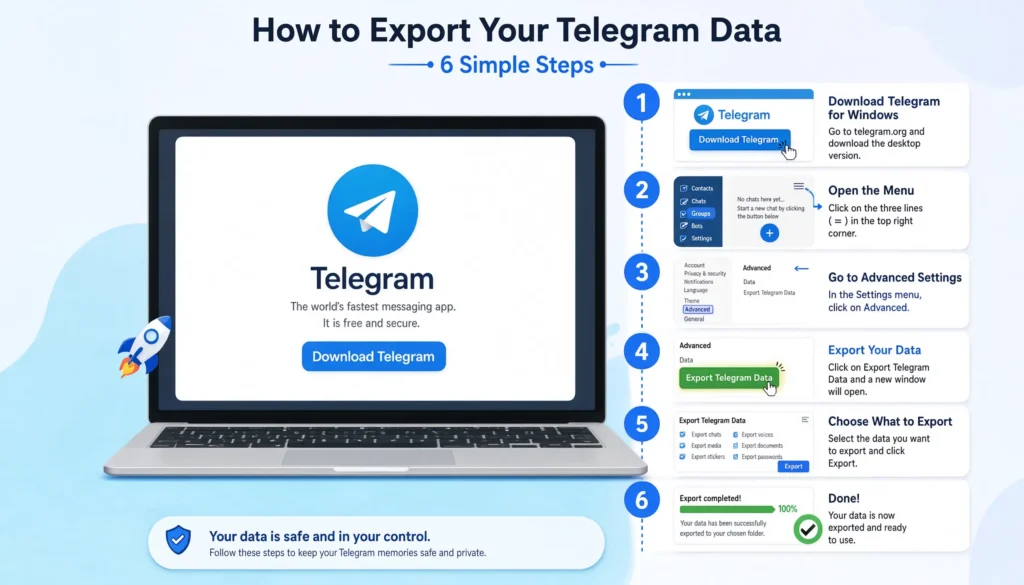
Step 1 — Install Telegram Desktop
Go to telegram.org and download Telegram Desktop for your operating system. Install it and log in using your phone number. Confirm the login with the code sent to your Telegram app on your phone.
Step 2 — Open Advanced Settings
Once logged in, click the three-line hamburger menu in the top left corner. Go to Settings, then scroll down and click Advanced.
Step 3 — Select Export Telegram Data
Inside Advanced settings, scroll to the bottom. You will see the option Export Telegram Data. Click it to open the export tool.
Step 4 — Choose What to Download
A window will appear with checkboxes for different data types. Select what you want to export — personal chats, group chats, channels, saved messages, photos, videos, files, and voice messages. If storage space is a concern, you can deselect large media files and export text only.
Step 5 — Save the Backup to Your Computer
Choose a destination folder on your computer where the export will be saved. Pick somewhere easy to find, like your Desktop or a dedicated backup folder. Click Export to begin the download.
Step 6 — Verify the Export Completed Successfully
Telegram will show a progress bar during export. Large accounts with years of media can take 30 minutes or longer. Wait for the process to complete fully before closing the app or proceeding with account deletion.
How to Save Telegram Photos, Videos, and Files Separately
If you only need to save media rather than full chat history, there is a faster method that works directly from your phone.
Download Media From Individual Chats
Open any Telegram chat on your phone. Tap and hold a photo or video, then tap the download icon to save it to your device storage. For documents, tap the file and choose Save to Downloads or a similar option depending on your device.
Save Files to Local Storage
On Android, downloaded Telegram files go to your Downloads folder or the Telegram folder in internal storage. On iPhone, files can be saved to the Files app or Photos app depending on the file type.
Create Organized Backup Folders
Before saving, create organized folders on your device or computer — one for each important chat or contact. This saves time later when you are looking for a specific file after deletion.
What Cannot Be Backed Up Before Deleting Telegram?
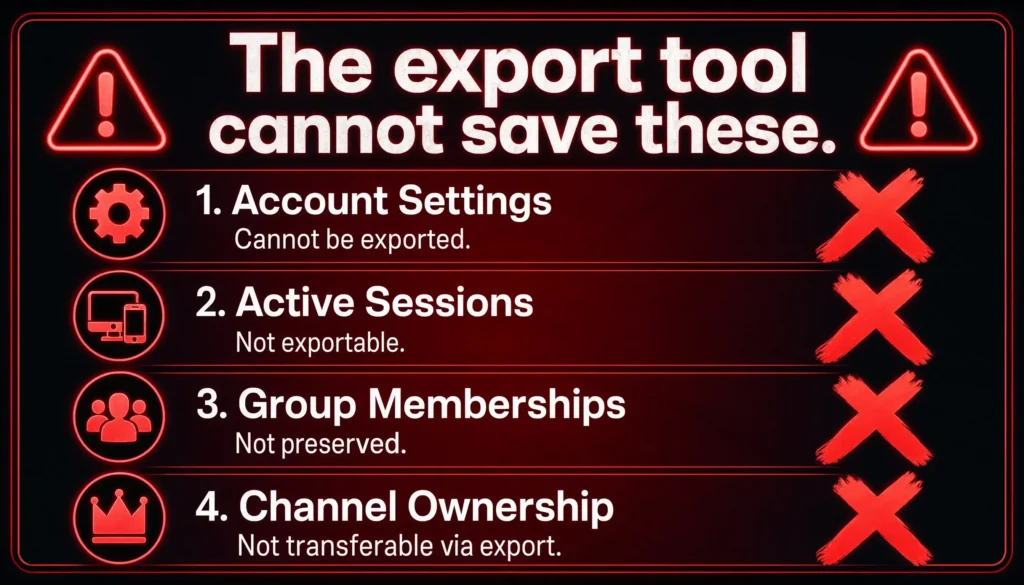
Understanding the limits of the backup process prevents frustration later.
Telegram Account Settings
Your privacy settings, notification preferences, and app customizations cannot be exported. These are account-level settings that disappear with the account.
Active Sessions
Information about which devices were logged into your account is not exportable. Your active sessions list disappears when the account is deleted.
Group Membership Status
Exporting your chats does not preserve your membership in groups or channels. After deletion, you are removed from every group and channel. The export gives you the message history but not the membership itself.
Channel Ownership Rights
If you own a Telegram channel, that ownership cannot be backed up or transferred through the export tool. You must manually transfer ownership inside Telegram before deleting your account.
Future Message Access
Exported chats are a static snapshot. Any new messages sent to your account after the export will not be included. Back up as close to your deletion date as possible.
| Data Type | Can Be Backed Up | Method |
|---|---|---|
| Private chat messages | Yes | Telegram Desktop export |
| Group chat messages | Yes | Telegram Desktop export |
| Photos and videos | Yes | Export or manual download |
| Documents and files | Yes | Export or manual download |
| Saved Messages | Yes | Telegram Desktop export |
| Account settings | No | Not exportable |
| Group memberships | No | Must rejoin manually |
| Channel ownership | No | Must transfer manually |
| Contact list | Partially | Manual notes or screenshots |
How to Verify Your Telegram Backup Before Deleting the Account
Never delete your account immediately after the export finishes. Take 10 minutes to verify the backup first.
Check Exported Files
Open the folder where you saved the export. You should see subfolders for different chat types and an index.html file at the top level. The folder size should roughly match what you expected based on how much data you have.
Open HTML and JSON Exports
Double-click the index.html file to open it in your browser. Navigate through your chats and confirm the messages are readable and complete. Spot-check a few important conversations to make sure nothing is missing.
Confirm Media Downloads
If you included photos, videos, or files in the export, open the media folders and confirm the files are there and can be opened. A backup that shows file names but contains corrupted or missing files is not a complete backup.
Store a Copy in Cloud Storage
Once verified, upload a copy of the backup folder to Google Drive, iCloud, or Dropbox. This protects you if your computer crashes or the local copy gets accidentally deleted.
Back Up Telegram vs Create a New Telegram Account
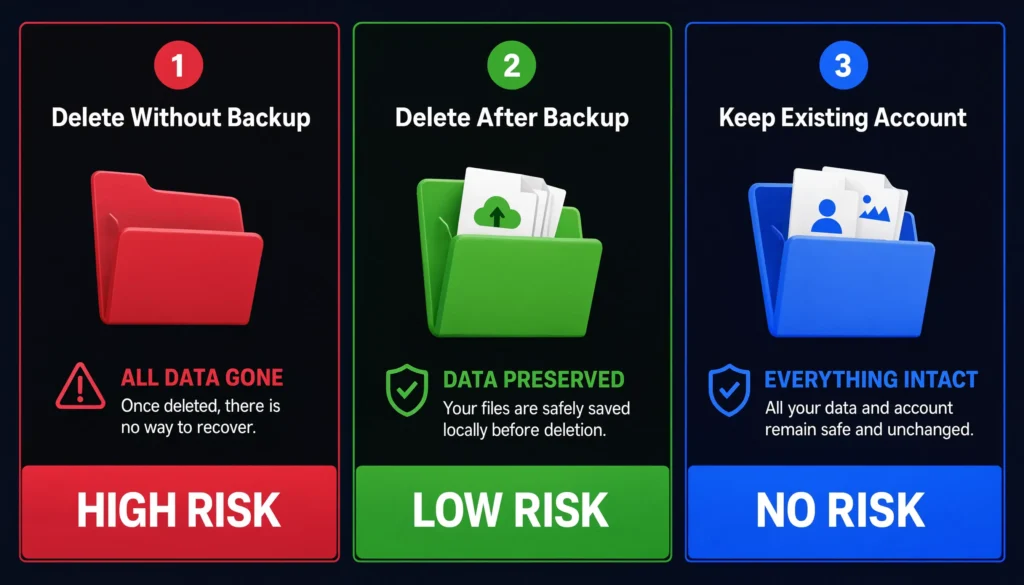
| Option | Keeps Old Messages | Requires Export | Risk of Data Loss |
|---|---|---|---|
| Delete Without Backup | No | No | High |
| Delete After Backup | Yes (as local files) | Yes | Low |
| Keep Existing Account | Yes | No | None |
Common Backup Mistakes Users Make Before Deleting Telegram
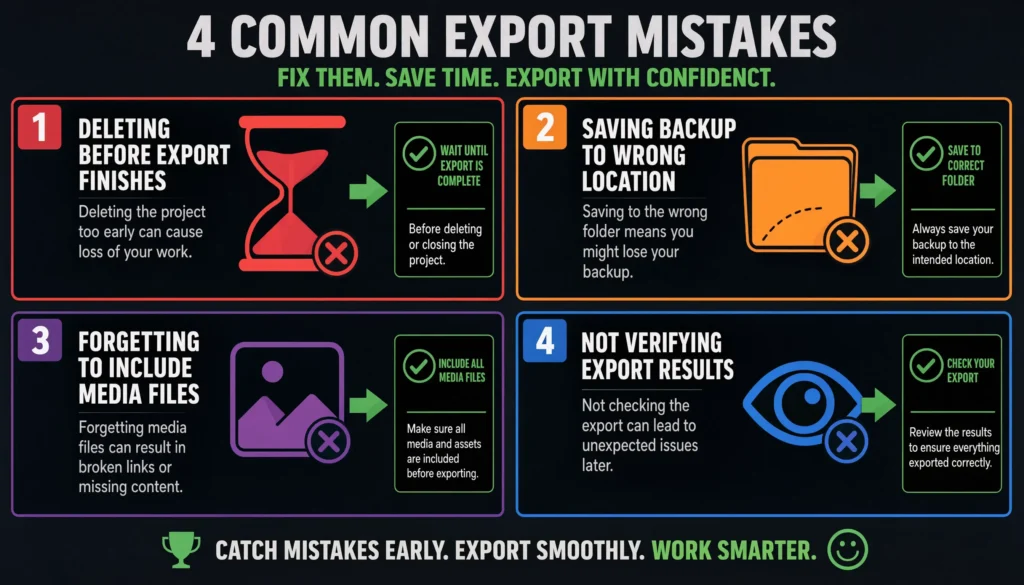
Deleting Before Export Finishes
Large exports can take a long time. Some users get impatient and delete their account while the export is still running. Wait for the export to fully complete before touching the deletion process.
Saving Backup to the Wrong Location
Saving the export to a temporary folder, the Desktop without organization, or a drive that gets wiped is a common mistake. Save to a clearly labeled folder and back it up to cloud storage immediately.
Forgetting Media Files
Many users export text messages but forget to check the box for photos, videos, and files. If your chats contain important media, make sure those boxes are selected before starting the export.
Not Checking Export Results
Assuming the export worked without opening and verifying the files is risky. Always open the HTML export and browse through a few chats before deleting your account.
Delete Telegram Safely After Completing Your Backup
Once your backup is verified and stored securely, you are ready to delete your account.
Review Your Saved Data
Open the export folder one final time and confirm everything important is there. Check media, messages, and saved files before moving forward.
Transfer Important Channels
If you manage a Telegram channel, assign a new owner inside the app before deleting. Open the channel, go to Administrators, and transfer ownership to a trusted member. This is the last chance to do it.
Proceed With Account Deletion
Head to my.telegram.org/deactivate, enter your phone number, confirm with the verification code, and complete the deletion. Your backup is already saved — you can delete with confidence.
Frequently Asked Questions
Can I Keep My Telegram Chats After Deleting My Account?
Yes, but only if you export them first using Telegram Desktop. Once your account is deleted, Telegram cannot restore your messages under any circumstances.
Does Telegram Have a Built-In Backup Feature?
Yes. Telegram Desktop includes an export tool under Settings > Advanced > Export Telegram Data. It lets you download messages, photos, videos, and files to your computer.
Can I Back Up Telegram Chats on Android or iPhone?
The full export feature requires Telegram Desktop on a computer. Mobile apps allow you to manually save individual photos and files but do not offer a complete chat export option.
Will My Backed-Up Chats Be Restored If I Create a New Telegram Account?
No. Exported files are stored locally on your device for your own reference. They cannot be imported into a new Telegram account.
What Is the Best Format for Exporting Telegram Data?
HTML is the best choice for most users — it opens directly in any web browser and is easy to read. JSON is better if you need to process the data technically.
Are Photos and Videos Included in Telegram Exports?
Yes, if you select them during the export setup. Depending on how much media you have, the export file size can be large and the process may take longer.
Should I Back Up Telegram Before Deleting It?
Absolutely. Deletion is permanent and irreversible. If there is any chance you will want access to old conversations or media, back up before you delete.
Conclusion
Deleting Telegram does not have to mean losing everything. The export tool in Telegram Desktop gives you a complete copy of your messages, photos, videos, and files before you walk away permanently.
The process is straightforward — install Telegram Desktop, go to Settings > Advanced > Export Telegram Data, select what you want to save, and let it run. Verify the export before you delete anything, and store a copy in cloud storage as a safety net.
Once your backup is confirmed and your important channels are transferred, you can delete your account knowing your data is safe on your own device.
DeleteAccount.com is not affiliated with Telegram. This guide is for informational purposes only. Steps may vary slightly depending on your app version.

Alex Mu is a digital technology writer focused on Telegram, account management, online privacy, and app troubleshooting. Through clear, practical guides, Alex helps readers understand digital platforms, manage their accounts, and resolve common technical issues. His work emphasizes accurate information, simple explanations, and step-by-step solutions that readers can follow with confidence.


