
Last Updated: May 2026
Quick Answer: To delete your Telegram account on a PC or Mac, visit Telegram’s official deactivation page, enter your phone number in international format, receive the verification code through Telegram, log in, and confirm account deletion. Your Telegram account is permanently removed immediately after confirmation, and there is no waiting period or recovery option.
Introduction
Telegram is one of the most popular messaging platforms in the world, offering cloud-based chats, large groups, channels, and cross-device synchronization. While many people use Telegram on smartphones, millions rely on Telegram Desktop on Windows and Mac for work, communication, and community management.
At some point, you may decide to leave Telegram permanently. Perhaps you are switching to another messaging platform, concerned about privacy, reducing distractions, or simply no longer need the service.
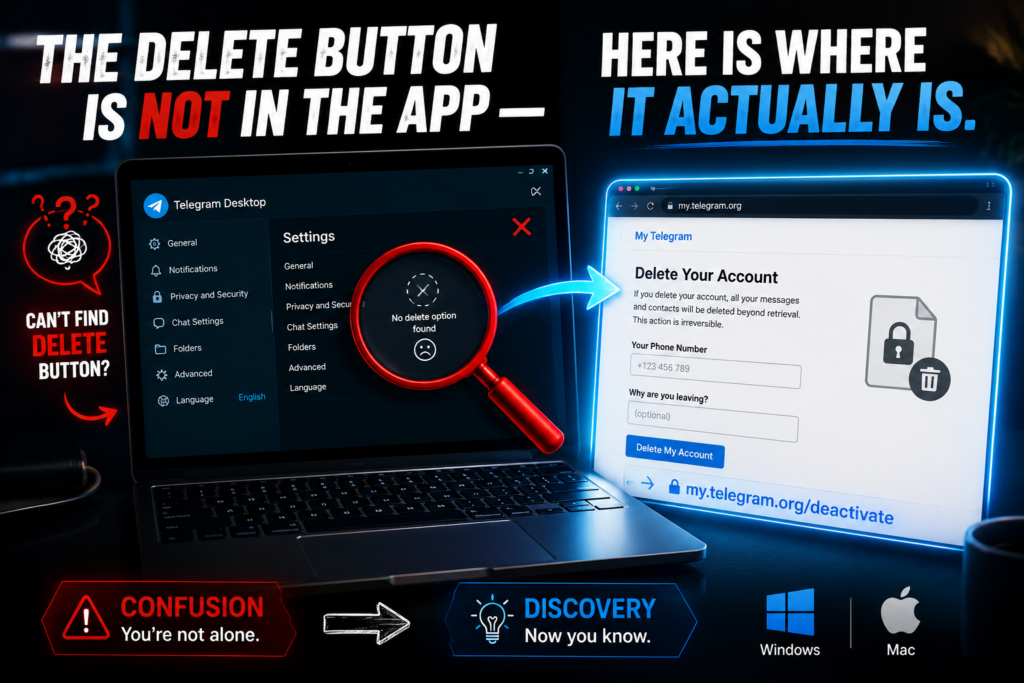
Many desktop users make the mistake of searching for a Delete Account button inside Telegram Desktop. Unfortunately, Telegram Desktop does not provide an option to permanently remove your account.
The good news is that deleting a Telegram account on a PC or Mac is straightforward once you know the correct method.
This guide walks you through every step, explains what happens after deletion, covers common problems, and answers the most important questions desktop users have before permanently removing their Telegram account.
Before Deleting Telegram on Your Computer
Before proceeding, take a few minutes to prepare. Telegram account deletion is permanent, meaning anything tied directly to your account may become inaccessible afterward. Spending a little time preparing now can prevent major regrets later.
Save Important Chats and Files From Telegram Desktop
Telegram often becomes a storage hub for important files, work conversations, documents, and personal media. Before deleting your account, review your chats and save anything you may need in the future.
Consider downloading:
- Photos
- Videos
- PDF documents
- Work files
- Important links
- Personal conversations
Telegram Desktop makes it easier to save content because you can download files directly to your computer. Many users only realize they needed a conversation or document after their account has already been deleted. Since deleted accounts cannot be restored, backing up important information is highly recommended.
Export Telegram Data Using Telegram Desktop
If you want a complete backup, Telegram Desktop includes a data export feature. To export your Telegram data:
- Open Telegram Desktop
- Click the menu icon
- Select Settings
- Open Advanced Settings
- Click Export Telegram Data
- Choose the data you want to download
- Start the export process
Depending on your account size, the export may take several minutes. This feature is particularly useful for users who have years of chat history or important business communications stored on Telegram.
Transfer Ownership of Channels and Groups
If you own Telegram channels or groups, deleting your account without transferring ownership can create problems. Before deleting, review all channels you own and all groups you manage, then transfer ownership where necessary. If you operate business communities, educational groups, or public channels, this step is especially important. Failing to transfer ownership could leave communities without proper management.
Verify You Can Access Your Telegram Account
Before starting the deletion process, ensure you still have access to your Telegram account, an active Telegram session, and your linked phone number. Telegram requires verification before account deletion. Without access to your account or phone number, completing the process can become difficult.
How to Delete Your Telegram Account on PC or Mac
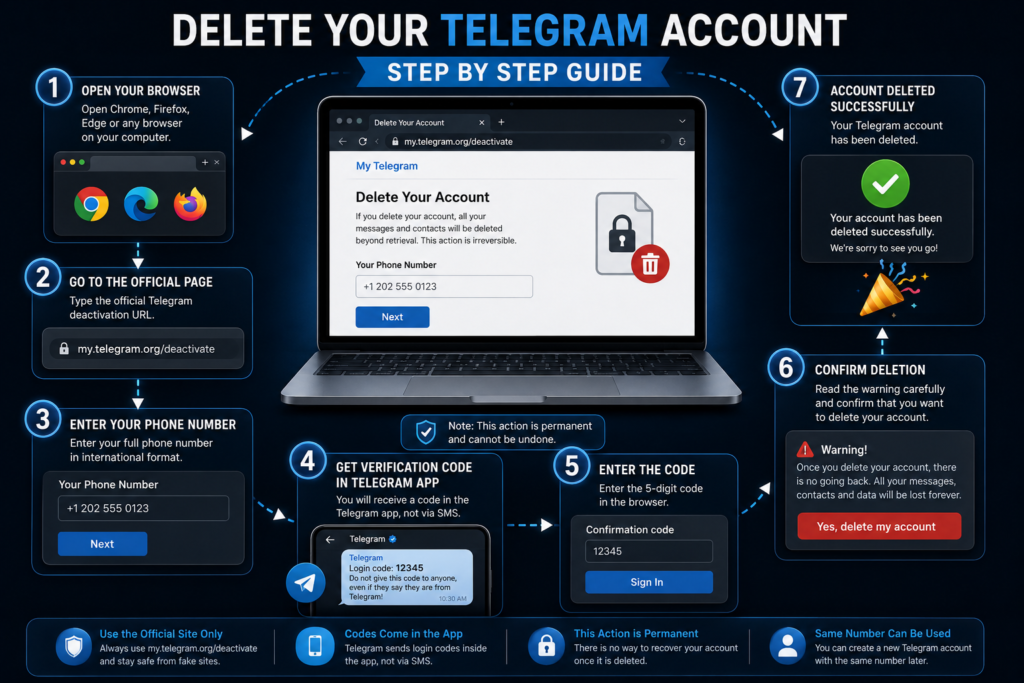
The official deletion process works on both Windows and macOS. The steps are identical regardless of operating system. Most users can complete the process in less than five minutes.
Step 1 — Open Telegram’s Official Deactivation Page
Launch your preferred browser — supported browsers include Google Chrome, Microsoft Edge, Mozilla Firefox, Safari, and Opera. Navigate to Telegram’s official deactivation page at my.telegram.org/deactivate. This is the only official method for permanently deleting a Telegram account.
Important: Telegram Desktop cannot permanently delete accounts. Telegram Web cannot permanently delete accounts. Only the official deactivation page can perform account deletion.
Step 2 — Enter Your Phone Number
You will see a field requesting your Telegram phone number. Enter the number in international format.
| Country | Example Number |
|---|---|
| United States | +12025551234 |
| Canada | +14165551234 |
| United Kingdom | +447700900123 |
| Australia | +61412345678 |
Make sure you include the plus sign, your country code, and your complete mobile number. Then click Next.
Step 3 — Receive the Verification Code
This step confuses many users. Unlike many services, Telegram often sends the verification code inside Telegram rather than by SMS. After entering your phone number, open Telegram Desktop and check for a message from Telegram containing the login code, then return to the browser.
If Telegram Desktop is not logged in, check Telegram on your phone, Telegram Web, or other active devices. The code is usually delivered to whichever session is already active.
Step 4 — Sign In Through the Browser
Enter the verification code exactly as received. Once verified, Telegram confirms your identity, account management options become available, and you gain access to the deletion interface. At this point Telegram may ask why you are leaving — providing feedback is optional and you can skip the field entirely.
Step 5 — Review the Final Warning
Before deletion, Telegram displays a final warning screen. This warning exists because account deletion is permanent. Telegram reminds users that messages cannot be recovered, contacts will be removed, profile information will disappear, and deleted accounts cannot be restored. Take a moment to review everything before proceeding. If you are unsure, stop and reconsider before clicking the final button.
Step 6 — Confirm Permanent Deletion
When you are ready, click the deletion confirmation button. Telegram immediately begins removing your account. There is no waiting period, no 30-day grace period, no recovery window, and no undo option. The process is instant.
Step 7 — Verify Successful Deletion
After confirmation, Telegram logs you out, desktop sessions terminate, and your profile becomes inaccessible. You can test deletion by attempting to log in again. If the deletion was successful, Telegram will treat the account as removed.
Telegram Desktop vs Telegram Web vs Official Deactivation Page
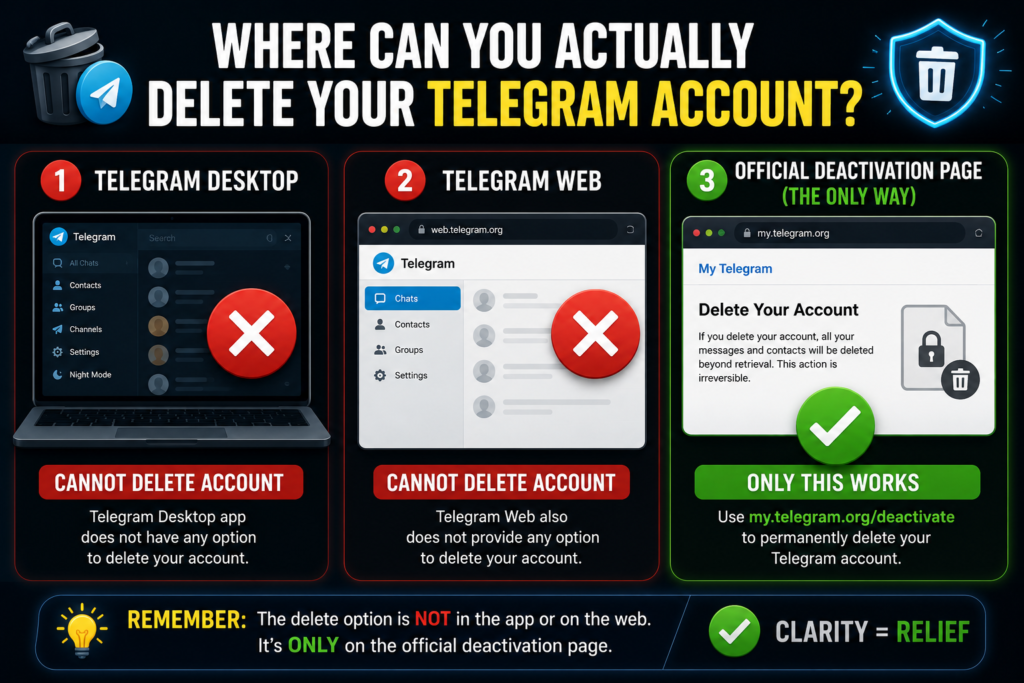
One of the biggest misconceptions is that all Telegram platforms offer the same account management options. They do not.
| Platform | Can Delete Account? |
|---|---|
| Telegram Desktop | No |
| Telegram Web | No |
| Official Deactivation Page | Yes |
Many users spend significant time searching Telegram Desktop settings for a delete option. The option does not exist. Telegram intentionally handles permanent deletion through its dedicated account management portal.
Windows and Mac Specific Tips for Telegram Deletion
Windows-Specific Tips
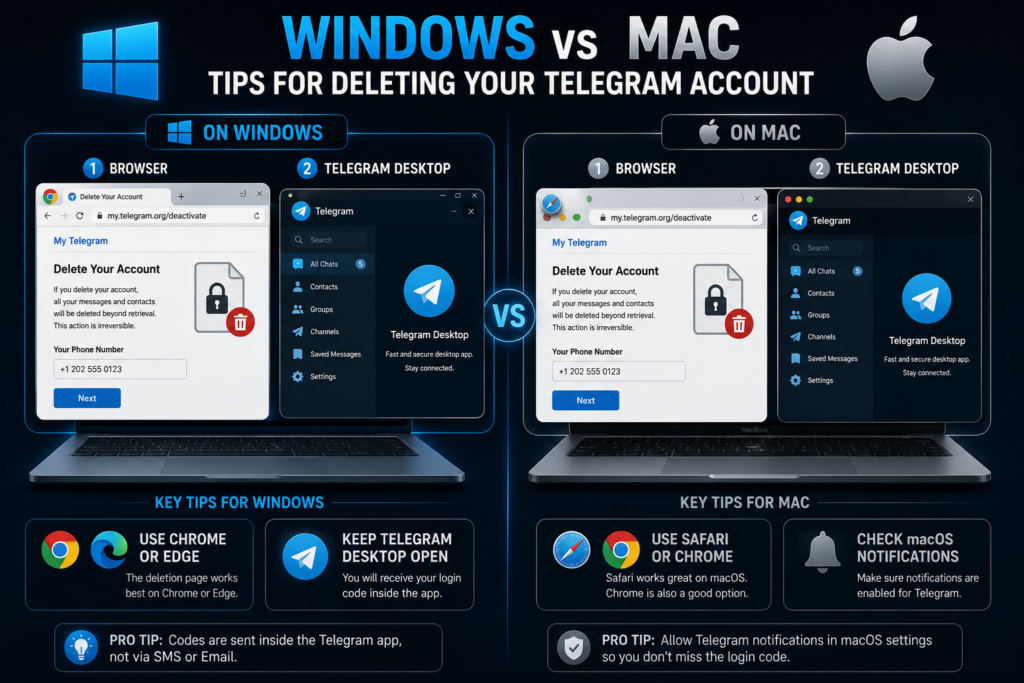
Windows users generally have the easiest experience because Telegram Desktop and the browser can remain open simultaneously. Keep Telegram Desktop open while requesting the verification code, use Chrome or Edge for best compatibility, save exported data before beginning deletion, and close unnecessary browser extensions if the page does not load. Most Windows users complete the process within a few minutes.
Mac-Specific Tips
Mac users follow the same process as Windows users. Use Safari or Chrome, keep Telegram Desktop running while requesting the code, check macOS notification settings if messages are not appearing, and verify that Telegram Desktop is connected to the internet. The deletion process itself remains identical.
How to Remove Telegram Desktop After Deleting Your Account
Deleting your account does not automatically uninstall Telegram Desktop. If you no longer need the application, remove it separately.
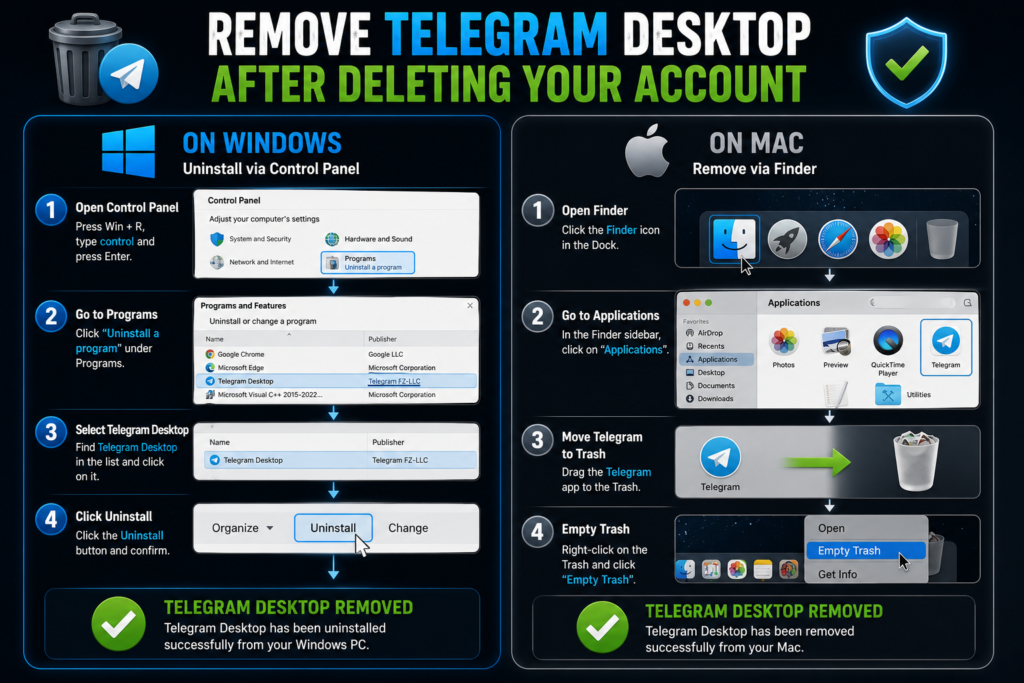
Uninstall Telegram on Windows
- Open Settings
- Click Apps
- Find Telegram Desktop
- Select Uninstall
- Confirm removal
The software will be removed from your computer.
Remove Telegram From macOS
- Open Finder
- Navigate to Applications
- Locate Telegram
- Drag it to the Trash
- Empty the Trash
Telegram Desktop is now removed from your Mac.
Common Problems When Deleting Telegram on PC or Mac
Most deletion failures are caused by a few common issues.
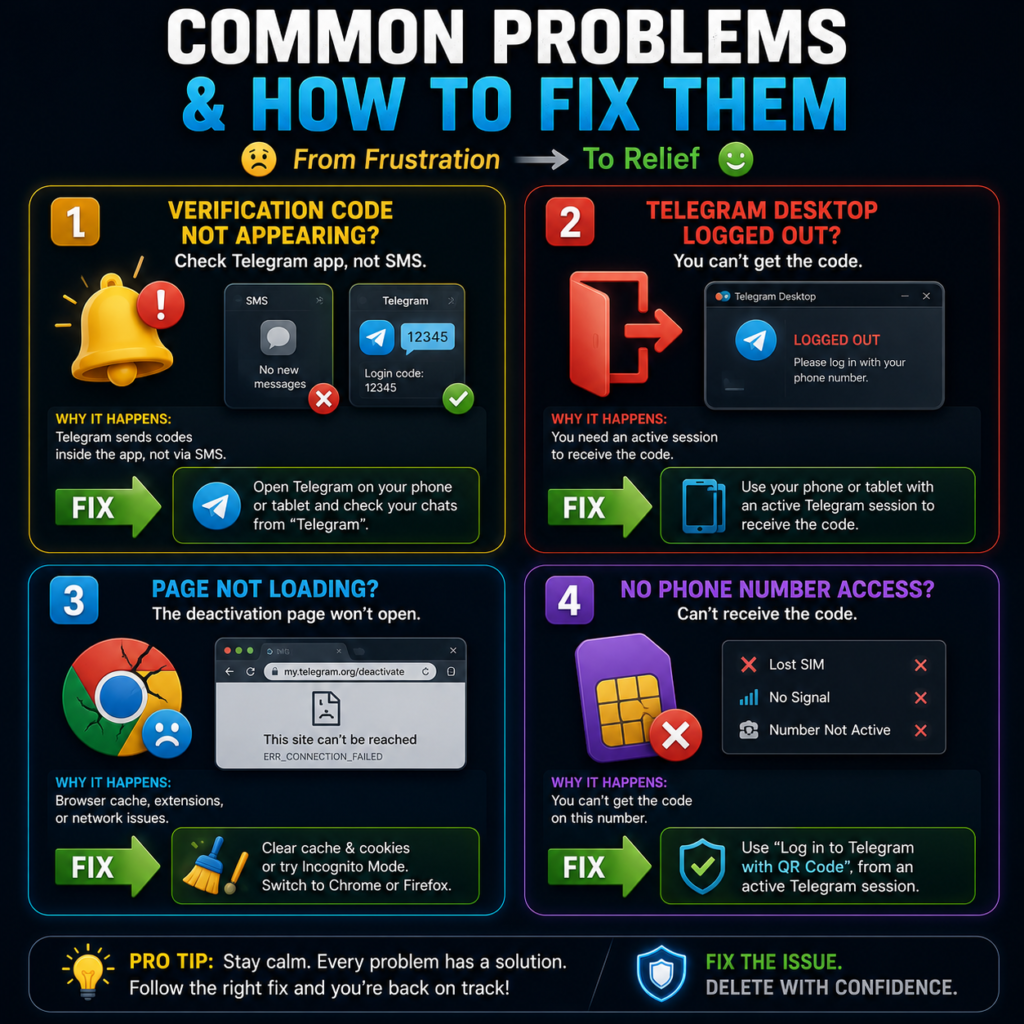
Verification Code Not Appearing
Usually the code is sent inside Telegram. Check Telegram Desktop, your Telegram mobile app, and other logged-in devices. Most users discover the code waiting inside Telegram rather than in their SMS inbox.
Telegram Desktop Logged Out
If Telegram Desktop is logged out, you may need to retrieve the code from another active device. Try your smartphone, tablet, or another computer. Any active Telegram session can receive the verification code.
Browser Cannot Open the Deactivation Page
Possible causes include network issues, browser cache problems, browser extensions, or temporary Telegram server issues. Try refreshing the page, switching browsers, clearing your cache, or disabling extensions.
No Access to the Linked Phone Number
This is one of the most difficult situations. If you no longer control the linked phone number, account verification becomes challenging. Your best option is accessing an existing Telegram session that remains logged in. Without phone number access or an active session, deleting the account may not be possible immediately.
What Happens After You Delete Telegram on a Computer?
Messages and Contacts
Telegram removes your profile information, contact data, account settings, and all associated account records. Anything tied directly to your account is deleted permanently.
Active Desktop Sessions
All active sessions are terminated automatically. This includes Windows PCs, Mac computers, mobile devices, tablets, and browser sessions. You will be logged out everywhere simultaneously.
Groups and Channels
Deleting your account removes your participation from all groups and channels. If you own communities, ownership should be transferred beforehand to prevent management issues after deletion.
Reusing the Same Phone Number
Your phone number can be used again after deletion. You may create a new Telegram account using the same number. However the new account starts completely fresh — previous chats, contacts, and settings will not return.
Frequently Asked Questions
Can I Delete My Telegram Account Directly From Telegram Desktop?
No. Telegram Desktop does not include a permanent account deletion feature. You must use Telegram’s official deactivation page at my.telegram.org/deactivate.
How Do I Delete Telegram on a Mac Permanently?
Open Telegram’s official deactivation page through Safari or another browser, verify your account, and confirm deletion. You can then uninstall Telegram from macOS by dragging it to the Trash.
Do I Need My Phone to Delete Telegram on a PC?
Not always. If another Telegram session is active, the verification code may be delivered there. However you must still verify your identity through some active session.
Why Can’t I Find a Delete Account Button in Telegram Desktop?
Telegram Desktop is designed for messaging and account management but permanent deletion is handled separately through Telegram’s official deactivation page. The delete button does not exist inside the app.
Does Uninstalling Telegram Desktop Delete My Account?
No. Uninstalling Telegram Desktop only removes the software from your computer. Your Telegram account remains fully active on Telegram’s servers until you delete it through the official page.
Can I Use the Same Phone Number After Deleting Telegram?
Yes. Telegram allows you to register a new account using the same phone number after deletion. Your new account will start completely fresh with no data from the previous account.
How Long Does It Take to Delete a Telegram Account on PC?
The process typically takes between two and five minutes. Once you confirm deletion the account is removed immediately with no waiting period.
Conclusion
Deleting a Telegram account on a PC or Mac is easier than many users expect once they know where to go. Although Telegram Desktop itself does not include a delete account option, the official deactivation page at my.telegram.org/deactivate provides a quick and reliable way to permanently remove your account.
Before proceeding, back up important conversations, export necessary files, and transfer ownership of any channels or groups you manage. These precautions can save significant frustration later.
Once deletion is confirmed, your account is permanently removed, all active sessions are terminated, and there is no recovery option. If you are certain you are ready to leave Telegram, following the steps in this guide will help you complete the process safely and successfully.
DeleteAccount.com is not affiliated with Telegram. This guide is for informational purposes only. Steps may vary slightly depending on your app version.

Alex Mu is a digital technology writer focused on Telegram, account management, online privacy, and app troubleshooting. Through clear, practical guides, Alex helps readers understand digital platforms, manage their accounts, and resolve common technical issues. His work emphasizes accurate information, simple explanations, and step-by-step solutions that readers can follow with confidence.


Thank you