
Quick Answer
Telegram Web is the official browser version of Telegram, available at web.telegram.org. It lets you send messages, join groups and channels, and share files without installing any app — you only need to scan a QR code with your phone or enter your phone number to log in. It supports most Telegram features except Secret Chats, which are device-only for security reasons. If you’re having trouble logging in or the page won’t load, the fix is usually a browser update, a stable internet connection, or clearing your session and scanning the QR code again.
Key Facts
| Official URL | web.telegram.org |
| Login methods | QR code or phone number |
| Cost | Free |
| App install required | No |
| Secret Chats supported | No |
| Works with | Chrome, Edge, Firefox, Safari |
| Best for | Desktop/laptop users, work computers, quick access without installing an app |
What Is Telegram Web?
Telegram Web is Telegram’s official browser-based client. It mirrors almost everything you can do in the mobile app — messaging, group chats, channels, voice messages, stickers, and file sharing — directly inside your web browser, with no download or installation needed.
It’s designed for people who want to use Telegram on a work computer, a shared machine, or any device where installing an app isn’t practical. Because it runs in the browser, it stays in sync with your phone in real time: messages you send or receive on Telegram Web instantly appear on your mobile app, and vice versa.
Official Telegram Web Address
The only official Telegram Web address is web.telegram.org.
Always type this directly into your browser or bookmark it — don’t click links to “Telegram Web login” pages shared through ads, emails, or messages from unknown senders. Fake login pages are a common phishing tactic, and entering your phone number or scanning a QR code on a fake site can hand over control of your account.
Safety Checklist Before Logging In
- Confirm the URL reads exactly web.telegram.org with no extra words or characters
- Look for the padlock/HTTPS icon in your browser’s address bar
- Never scan a QR code from a site you found through a random link or pop-up
Features of Telegram Web
| Feature | Available on Telegram Web |
|---|---|
| Messaging | Yes |
| Groups | Yes |
| Channels | Yes |
| Voice Messages | Yes |
| Stickers and GIFs | Yes |
| File Sharing | Yes |
| Video Calls | Limited, browser-dependent |
| Secret Chats | No |
| Bots | Yes |
| Multiple Accounts | Yes |
How to Log In to Telegram Web
You can log in using either of two methods. Both require an active Telegram account on your phone.
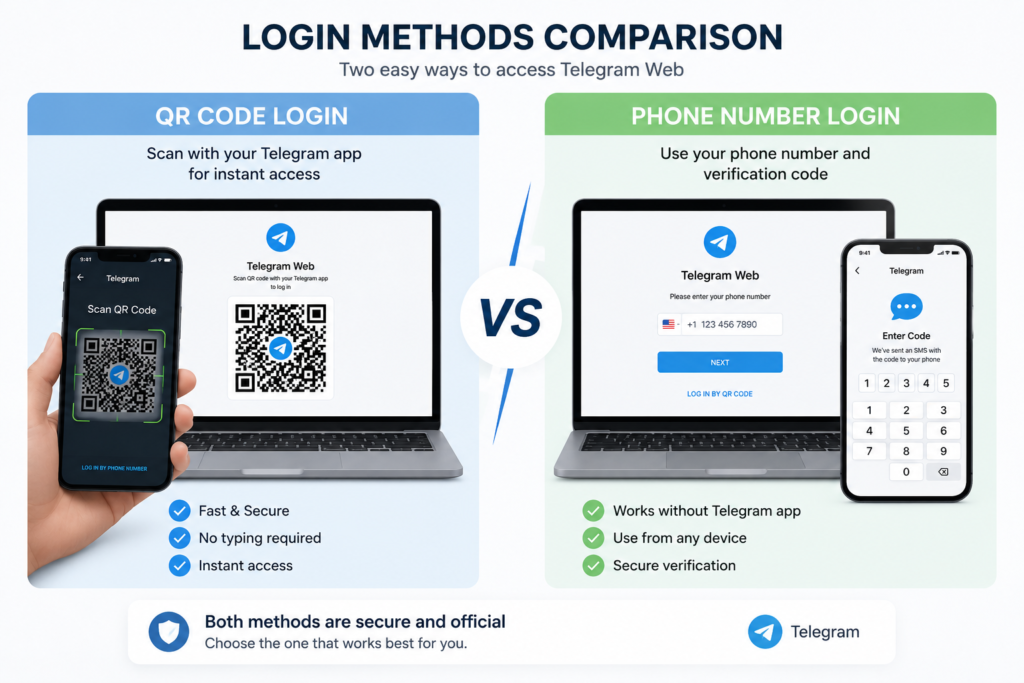
Method 1: QR Code (Fastest)
- Go to web.telegram.org in your browser.
- Choose the QR code login screen (this is usually the default).
- Open Telegram on your phone.
- Tap Settings, then Devices, then Link Desktop Device.
- Point your phone’s camera at the QR code shown on your screen.
- Your Telegram Web session opens automatically.
Method 2: Phone Number
- Go to web.telegram.org.
- Select Log in by phone Number.
- Enter your country code and phone number.
- Open Telegram on your phone — you’ll receive a login code inside the app itself, not as an SMS.
- Enter the code on the Telegram Web screen.
- If you have two-step verification enabled, enter your password when prompted.
How to Scan the QR Code (Step by Step)
- Open web.telegram.org on your computer.
- On your phone, open the Telegram app.
- Go to Settings.
- Tap Devices.
- Tap Link Desktop Device (or the scan icon).
- Allow camera access if asked.
- Point your phone directly at the QR code on your screen until it’s fully in frame.
- Wait two to three seconds — the session should link automatically.
Tip: Keep your phone steady and make sure your screen brightness is high enough for the camera to read the code clearly.
How to Log Out of Telegram Web
- Open Telegram Web in your browser.
- Click the menu icon in the top-left corner.
- Select Settings, then Devices.
- Find the active Telegram Web session.
- Click Terminate Session.
You can also log out remotely from your phone at any time under Settings, then Devices, which is useful if you forgot to log out on a public or shared computer.
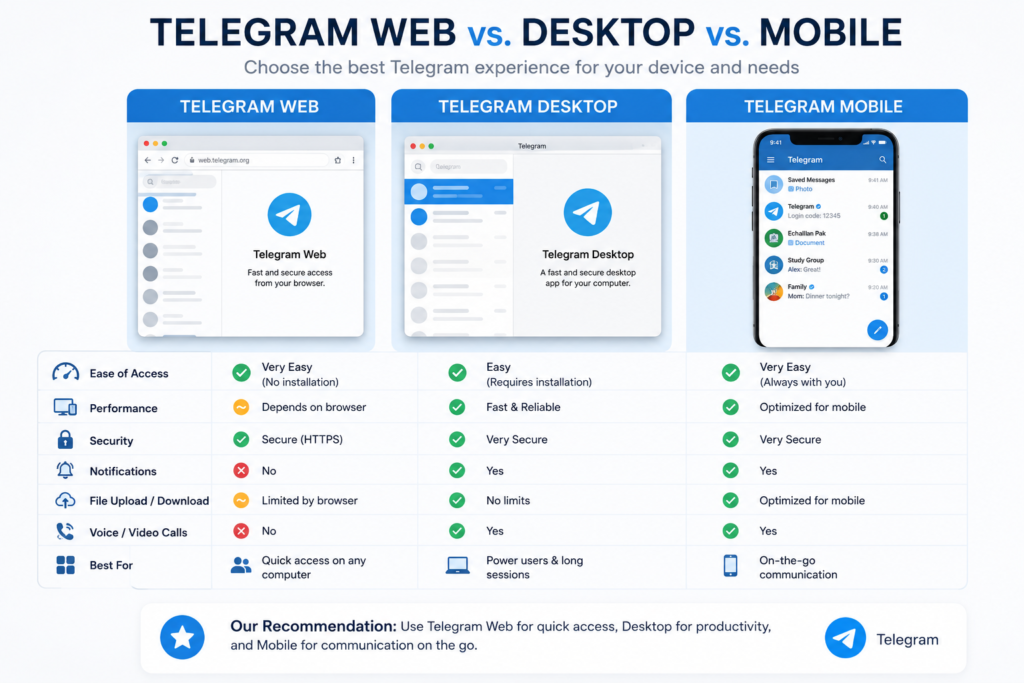
Telegram Web vs. Telegram Desktop
| Telegram Web | Telegram Desktop | |
|---|---|---|
| Installation required | No | Yes |
| Works on any computer | Yes | Only where installed |
| Notifications | Browser-dependent | Native OS notifications |
| Speed | Slightly slower | Faster and more responsive |
| Offline access | No | Limited |
| Best for | Shared/work/public computers | Personal daily-use computers |
Telegram Web vs. Mobile App
| Telegram Web | Mobile App | |
|---|---|---|
| Secret Chats | No | Yes |
| Voice/Video Calls | Limited | Full support |
| Notifications | Only while browser tab is open | Always on |
| Convenience | Best for typing on a large screen | Best for on-the-go use |
| Storage of media | Browser cache | Device storage |
WhatsApp vs. Telegram
Many people evaluating Telegram Web are also comparing Telegram as a platform to WhatsApp before deciding where to keep their primary chats.
| Telegram | ||
|---|---|---|
| Browser version | Yes (web.telegram.org) | Yes (web.whatsapp.com) |
| Login method | QR code or phone number | QR code only |
| Cloud-based chat sync | Yes, chats sync across all devices instantly | Limited, phone must stay connected for full sync |
| Group size limit | Up to 200,000 members | Up to 1,024 members |
| File sharing limit | Up to 2 GB per file | Up to 2 GB per file |
| End-to-end encryption by default | No (only in Secret Chats) | Yes, on all chats |
| Self-destructing messages | Yes | Yes |
| Channels/broadcast feature | Yes, built-in Channels | Limited (Broadcast Lists, Communities) |
Is Telegram Web Safe?
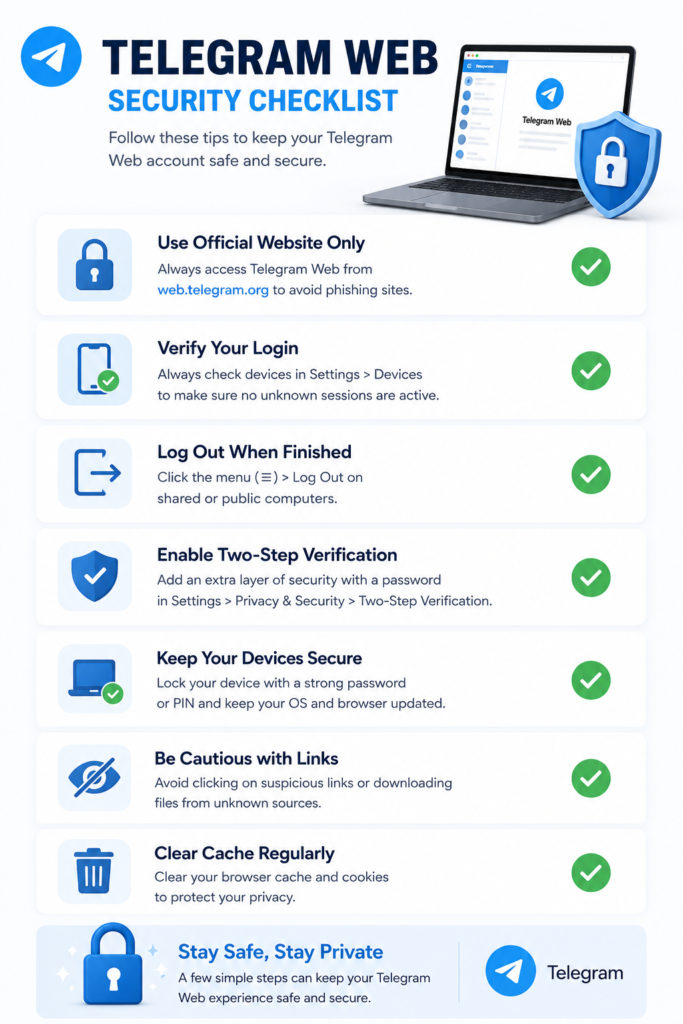
Yes, Telegram Web is safe when accessed through the official web.telegram.org address, since all messages are encrypted in transit using the same protocol as the mobile app. The main risks come from user behavior, not the platform itself — for example, staying logged in on a shared computer or falling for a fake login page.
Security Tips
- Always log out after using Telegram Web on a public or shared computer
- Turn on two-step verification under Settings, then Privacy and Security
- Regularly check Settings, then Devices, and terminate sessions you don’t recognize
- Never scan a QR code you didn’t generate yourself on web.telegram.org
- Avoid saving your Telegram password in a shared browser’s autofill
Common Problems and Fixes
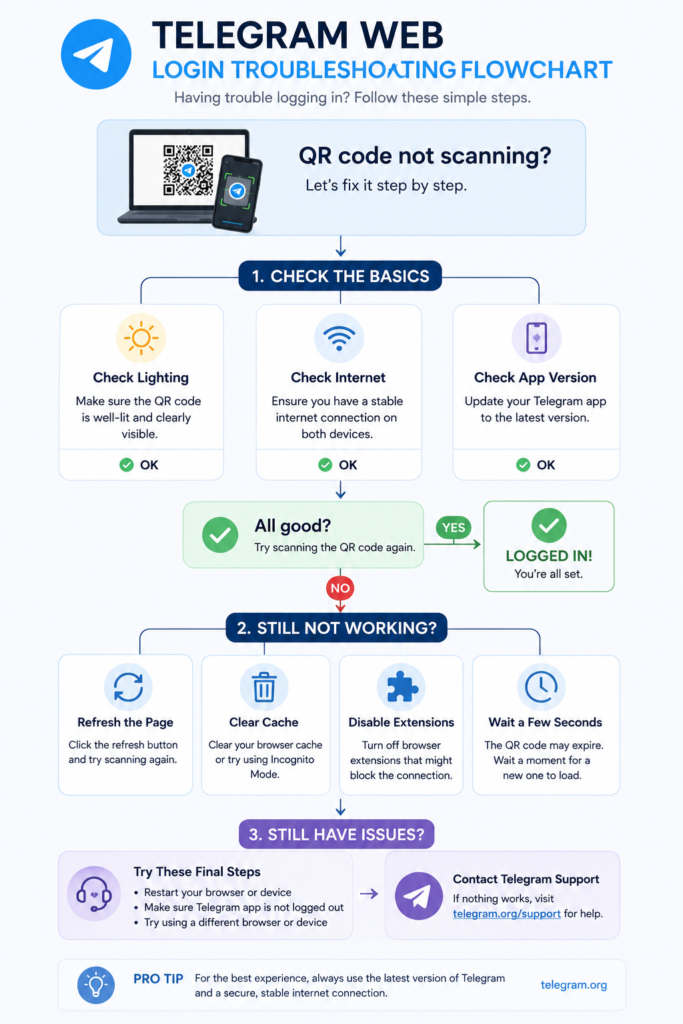
QR Code Not Working
Usually caused by a slow internet connection, an outdated Telegram app, or poor lighting. Refresh the Telegram Web page to generate a new QR code, update your Telegram app, and make sure your camera has a clear, well-lit view of the screen.
Login Code Not Received
The code arrives as a Telegram message, not a text message — check the Telegram app itself, not your SMS inbox. If nothing appears, confirm you entered the correct phone number and country code, then request the code again.
Infinite Loading Screen
This is often a browser cache issue. Clear your browser cache and cookies for web.telegram.org, disable browser extensions (especially ad blockers or VPNs), and reload the page.
Browser Not Supported
Telegram Web works best on updated versions of Chrome, Edge, Firefox, and Safari. If the page won’t load properly, update your browser to the latest version or switch browsers temporarily.
Session Expired
Telegram Web sessions can expire after long periods of inactivity or if you log out from your phone. Simply log in again using the QR code or phone number method.
Logged Out Automatically
This typically happens if you removed the session from Settings, then Devices on your phone, changed your Telegram password, or didn’t use the session for an extended period. Log back in to start a new session.
Best Browsers for Telegram Web
- Google Chrome — most reliable, best overall compatibility
- Microsoft Edge — performs nearly identically to Chrome
- Mozilla Firefox — fully supported, occasional minor UI differences
- Safari — works well on Mac, though some users report slower notification behavior
Privacy Tips for Telegram Web
- On public computers: Always use a private/incognito browser window and log out immediately after use
- Logout habits: Get in the habit of terminating the session from your phone if you forget to log out manually
- Two-step verification: Add a password on top of your phone number login for extra account protection
- Session management: Periodically review all active sessions under Settings, then Devices, and remove any device you don’t recognize
Frequently Asked Questions
Is Telegram Web free to use?
Yes, Telegram Web is completely free with no subscription or hidden charges.
Do I need to install anything to use Telegram Web?
No installation is required — it runs entirely in your browser at web.telegram.org.
Can I use Telegram Web without a phone?
No, you need an active Telegram account linked to a phone number, and your phone must be nearby to scan the QR code or receive the login code.
Why does Telegram Web log me out automatically?
This usually happens due to long inactivity, a password change, or the session being manually removed from your phone’s Devices list.
Can I use Telegram Web and the mobile app at the same time?
Yes, both stay synced in real time — messages sent or received on one appear instantly on the other.
Does Telegram Web support Secret Chats?
No, Secret Chats are only available on mobile devices for security reasons since they’re device-specific and not stored on Telegram’s servers.
Is it safe to log in to Telegram Web on a work computer?
Yes, as long as you log out afterward and avoid saving your login on a shared browser profile.
What happens if I lose my phone while logged in to Telegram Web?
Your Telegram Web session stays active until you or someone else terminates it. You can remove it remotely from another device once you regain account access, or contact Telegram support if needed.
Can someone hack my account through Telegram Web?
Only if they gain access to a fake login page or an unattended, logged-in session. Using the official web.telegram.org address and enabling two-step verification prevents this.
Why is my QR code not scanning?
This is usually a lighting, camera, or connectivity issue — refresh the page for a new code and ensure your phone’s camera has a clear, steady view of the screen.
Can I receive calls on Telegram Web?
Voice and video call support on Telegram Web is limited and depends on your browser; the mobile and desktop apps offer more reliable calling.
Does Telegram Web work on mobile browsers?
It can load on a mobile browser, but Telegram recommends using the dedicated mobile app for the best experience on phones.
Final Thoughts
Telegram Web is the fastest way to use Telegram on any computer without installing software, and for most everyday tasks — messaging, groups, channels, file sharing — it works just as well as the desktop or mobile app. The trade-offs are Secret Chats and always-on notifications, which require the mobile app. As long as you log in only through the official web.telegram.org address and log out on shared devices, it’s a safe and convenient option for staying connected to Telegram from any browser.
Helpful Telegram Tools
If you’re reassessing how much you use Telegram or considering leaving the platform, these free tools can help:
- Should I Delete My Telegram Account? (Free Quiz)
- Telegram Account Deletion Checklist
- Telegram Data Size Estimator
- Telegram Inactivity Calculator — When Will My Account Delete?

Alex Mu is a digital technology writer focused on Telegram, account management, online privacy, and app troubleshooting. Through clear, practical guides, Alex helps readers understand digital platforms, manage their accounts, and resolve common technical issues. His work emphasizes accurate information, simple explanations, and step-by-step solutions that readers can follow with confidence.


