Last Updated: 2026
Quick Answer: To enable two-step verification on Telegram, go to Settings, tap Privacy and Security, select Two-Step Verification, and set a password. To disable it, follow the same path, enter your current password, and tap Turn Password Off. Always add a recovery email when you set it up, or you risk losing access to your account for good if you forget your password.
Key Facts
- Telegram’s two-step verification is a password only — there’s no authenticator app or SMS-based second factor involved
- A recovery email is optional during setup, but skipping it can mean permanent account loss if you forget your password
- Turning the feature off requires entering your current password first
- Three failed password attempts trigger a temporary lockout before you can try again
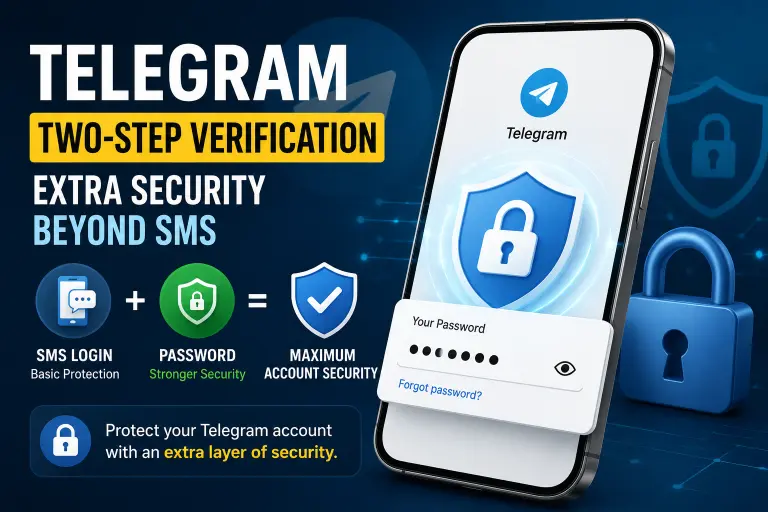
Telegram already asks for a phone number and a text message code before you can log in. That’s the default setup, and it works fine for most people. But if someone steals your SIM card or intercepts that SMS code, they can get into your account with nothing else standing in the way. Two-step verification closes that gap by adding a password on top of the phone-based login.
This guide walks through turning it on, turning it off, and — the part most tutorials skip — what to do if you forget the password you set. Both processes take just a few minutes, but the disable process trips people up more often than the setup does, usually because they forgot their password or never added a recovery email.
What Is Two-Step Verification on Telegram?
Two-step verification is an extra password that Telegram asks for whenever you log in on a new device, on top of the usual SMS code. Instead of relying only on your phone number and a text message, anyone trying to access your account — including you, on a new phone — needs both the SMS code and this separate password.
It’s Telegram’s version of two-factor authentication, but it works differently from what you might be used to on other apps. There’s no authenticator app involved and no six-digit code that refreshes every 30 seconds. It’s just a password you create yourself, similar to logging into a website. If your phone number gets compromised through a SIM swap or a leaked SMS code, this password is what keeps your account out of someone else’s hands.
How Do I Enable Two-Step Verification on Telegram?
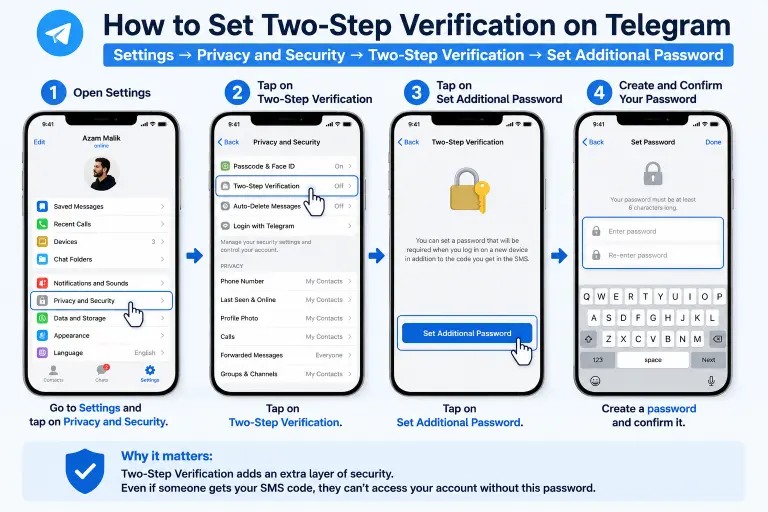
Setting it up takes about two minutes. Here’s the process:
- Open Telegram and tap the menu icon in the top-left corner (three lines on mobile, or the hamburger menu on desktop)
- Tap Settings
- Select Privacy and Security
- Scroll down and tap Two-Step Verification
- Tap Set Additional Password
- Enter a password, then re-enter it to confirm
- Add an optional hint to help you remember the password later
- Enter a recovery email address (strongly recommended — skip this and you can permanently lose access if you forget your password)
- Check your email for a confirmation code and enter it
- Tap Return to Settings to finish
Once this is done, Telegram will ask for your password any time your account logs in on a new device, in addition to the SMS code sent to your phone.
Important: Choose a password you don’t already use anywhere else. If you reuse a password from an account that’s been part of a data breach, you’ve effectively removed the extra security this feature is supposed to add.
Platform-Specific Steps (Android, iPhone, PC, Web)
The core steps are the same everywhere, but the menu layout shifts slightly depending on where you’re setting it up.
| Platform | Menu Path | Notes |
|---|---|---|
| Android | Menu (☰) → Settings → Privacy and Security → Two-Step Verification | Menu icon sits top-left on the Chats screen |
| iPhone | Settings tab (bottom-right) → Privacy and Security → Two-Step Verification | No hamburger menu — Settings has its own tab |
| PC / Mac (Desktop app) | Menu (☰) → Settings → Privacy and Security → Two-Step Verification | Desktop menu mirrors Android’s layout |
| Telegram Web | Menu (☰, top-left of chat list) → Settings → Privacy and Security → Two-Step Verification | Works the same in any browser, no separate app needed |
Whichever device you set the password on, it applies to your entire account — you don’t need to repeat the process on every device you use.
How Do I Disable Two-Step Verification on Telegram?
If you no longer want the extra password step, you can remove it just as easily as you added it:
- Open Telegram and go to Settings
- Tap Privacy and Security
- Select Two-Step Verification
- Enter your current password and tap the checkmark
- Tap Turn Password Off
- Confirm when Telegram asks if you’re sure
Once confirmed, Telegram removes the password requirement, and future logins will only need the SMS code sent to your phone number. You’ll also get a notification confirming that two-step verification has been turned off.
Before you disable it: think about why you’re removing it. If it’s because you keep forgetting the password, a password manager is a better fix than dropping the security layer altogether.
What Happens If You Forget Your Two-Step Verification Password?
This is where most people run into trouble, and it depends entirely on whether you added a recovery email during setup.
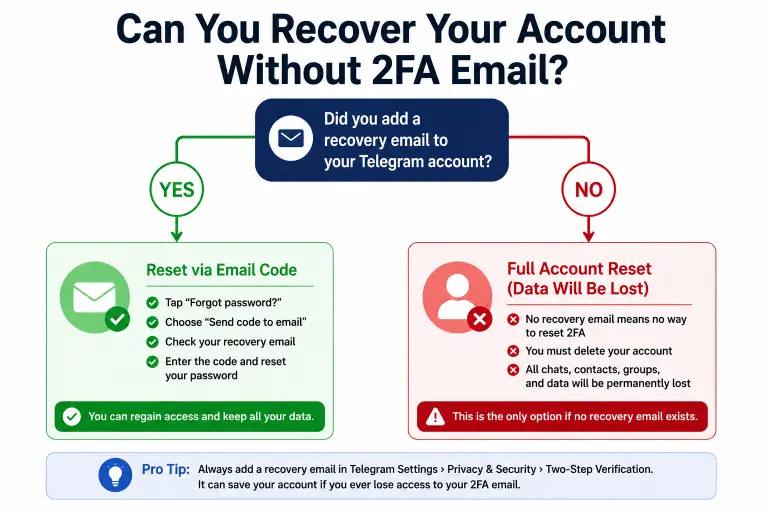
If you added a recovery email: On the password entry screen, tap “Forgot Password.” Telegram sends a reset code to that email. Enter the code, and you’ll be able to set a new password without losing any account data.
If you did not add a recovery email: Your only option is Telegram’s account reset process. This deletes your existing account — including your chat history, contacts list, and Cloud Storage data — and lets you create a new account using the same phone number. There’s no support ticket or workaround that bypasses this. Telegram designed two-step verification specifically so that even the company itself can’t override your password without your recovery email.
This is exactly why setting a recovery email during the initial setup matters so much, even though the app marks it as optional.
Two-Step Verification vs. SMS-Only Login: What’s the Difference?
| Factor | SMS Code Only (Default) | Two-Step Verification Enabled |
|---|---|---|
| What’s required to log in | Phone number + SMS code | Phone number + SMS code + password |
| Risk if SIM is stolen or swapped | High — attacker can log in with just the code | Low — attacker still needs your password |
| Risk if SMS is intercepted | High | Low |
| Setup time | None (default) | About 2 minutes |
| Recovery if locked out | Standard phone verification | Requires recovery email or full account reset |
The trade-off is straightforward: two-step verification adds real protection against SIM-based attacks, but it also adds a way to lock yourself out if you’re not careful with your password and recovery email.
Common Problems When Setting Up or Removing Two-Step Verification
| Problem | Cause | Fix |
|---|---|---|
| Recovery email code never arrives | Email typo, or code landed in spam | Double-check the email address; check spam/junk folder |
| “Too many attempts” lockout | Entered the wrong password 3+ times | Wait out the cooldown period, then try again carefully |
| Forgot password and no recovery email | Skipped the optional email field during setup | Use Telegram’s account reset (this deletes existing chat history) |
| Can’t remember the password hint | Hint too vague or never set | Hints are optional — if unset, rely on the recovery email instead |
| Disable option missing from settings | Two-step verification was never actually enabled | Confirm status under Privacy and Security → Two-Step Verification |
Should You Use Two-Step Verification on Telegram?
For most users, yes — the two minutes it takes to set up is worth the protection against SIM swaps and intercepted SMS codes, especially since so much of daily communication now runs through Telegram.
It matters even more if you:
- Run a business or admin account for groups and channels
- Have a public profile or high follower count
- Store sensitive conversations or files in Telegram’s Cloud Storage
- Have previously had a phone number compromised or SIM-swapped
If you’re someone who regularly loses access to email accounts or struggles to keep track of passwords, weigh that against the lockout risk described above — a password manager solves this better than skipping the feature entirely.
Tips to Avoid Getting Locked Out
- Always add a recovery email when you set up two-step verification, even though Telegram marks it as optional
- Use a password manager instead of trying to memorize your password
- Don’t reuse a password from another account, especially one that’s been part of a data breach
- Write your password hint down somewhere secure if you’re not using a password manager
- Periodically check that your recovery email address is still active and accessible
It’s also worth reviewing what else Telegram exposes by default — the privacy settings most users overlook go well beyond just this one feature, and pairing them with two-step verification gives you a much more complete security setup.
Frequently Asked Questions
Can I recover my Telegram account if I forget my two-step verification password?
Yes, if you added a recovery email during setup — Telegram sends a reset code to that email. Without a recovery email, your only option is a full account reset, which deletes your existing chat history and data.
Does two-step verification replace the SMS code, or is it in addition to it?
It’s in addition to the SMS code, not a replacement. You’ll still need to enter the code sent to your phone number, plus the password you set.
How long does Telegram lock me out after too many wrong password attempts?
Telegram temporarily blocks further attempts after three incorrect entries. The exact cooldown period varies, but you’ll see a message telling you how long to wait before trying again.
Can I disable two-step verification without knowing my current password?
No. Telegram requires your current password to turn the feature off. If you’ve forgotten it, you’ll need to use your recovery email to reset it first, or reset your account entirely if no recovery email was set.
Does enabling two-step verification protect me from a SIM swap attack?
Yes. Even if someone takes control of your phone number and receives your SMS code, they still can’t log into your account without the separate password.
Will I lose my chats if I reset my account after forgetting my 2FA password?
Yes. Resetting your account deletes your existing messages, contacts, groups, and Cloud Storage data. It creates a fresh account using the same phone number, but none of your old data carries over.
Can I change my two-step verification password without disabling it first?
Yes. Go to Settings → Privacy and Security → Two-Step Verification, enter your current password, and select the option to change your password instead of turning it off.
Once your account is locked down with two-step verification, it’s worth checking which devices currently have access — reviewing your active sessions shows you every device logged in and lets you remove any you don’t recognize. And if you’re setting this up because you suspect your account has already been compromised, see our guide on recovering or deleting a hacked Telegram account for next steps.
DeleteAccountGuide.com is not affiliated with Telegram. This guide is for informational purposes only. Steps may vary slightly depending on your app version.

Alex Mu is a digital technology writer focused on Telegram, account management, online privacy, and app troubleshooting. Through clear, practical guides, Alex helps readers understand digital platforms, manage their accounts, and resolve common technical issues. His work emphasizes accurate information, simple explanations, and step-by-step solutions that readers can follow with confidence.


